Every release of gethome — the iPhone app, the hub that runs on a small computer you own, and the Mac app that sets the hub up — newest first, with the version each landed in. 33 releases so far, from 2026-08-26 to 2026-11-11. The newest is “Fable 5.2 in place of Fable 5.1”, for gethome Hub.
gethome for iPhone — Free on the App Store.
gethome Hub — Public on GitHub.
gethome Studio for Mac — Available to download.
Fable 5.2 in place of Fable 5.1
— gethome Hub 0.1.6
Every AI menu offers Claude Fable 5.2 where Fable 5.1 was, for a fifth less, and a home that chose Fable 5.1 runs Fable 5.2 once its hub updates.
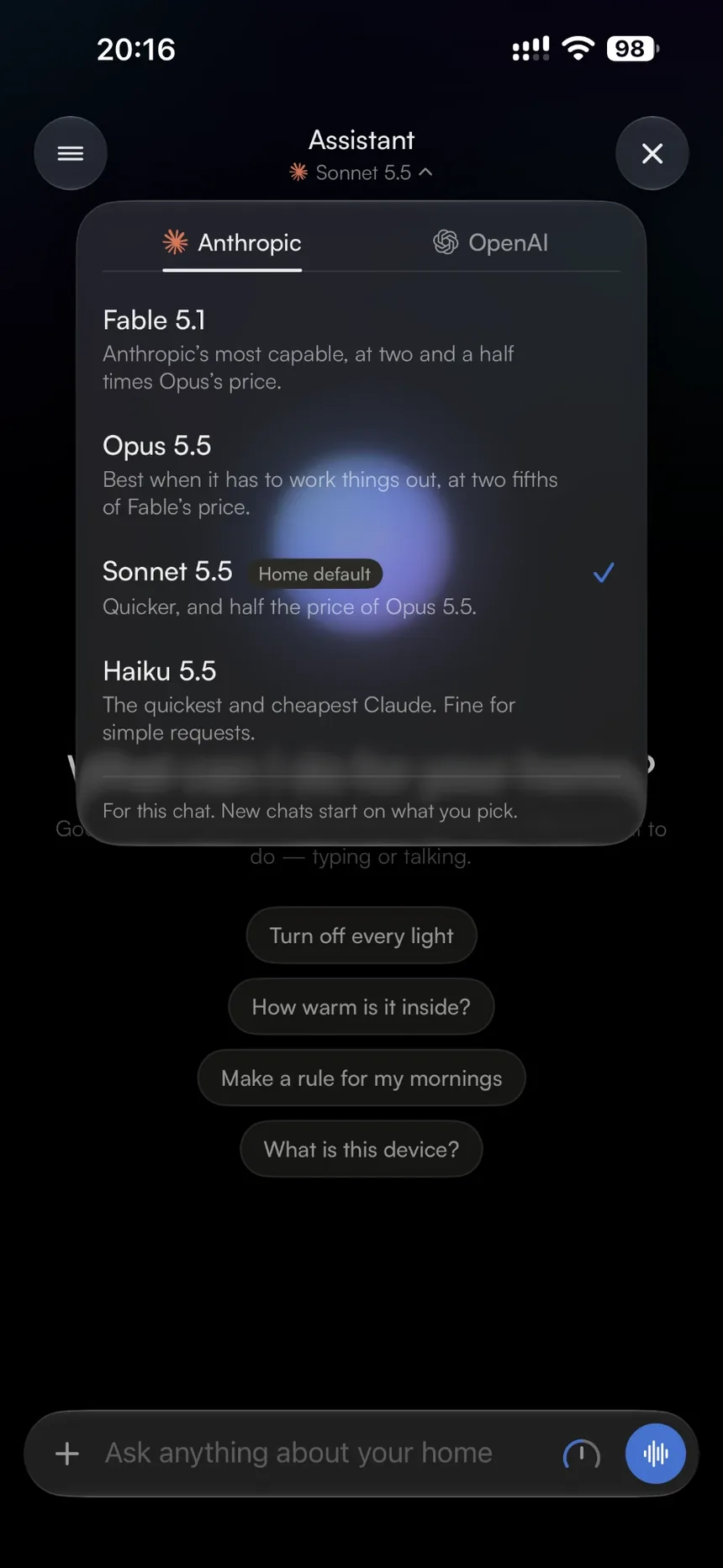
Claude Fable 5.2, Opus 5.5, Sonnet 5.5 and Haiku 5.5, with Opus 5.5 the default. Device recognition offers the first two.
OpenAI GPT-6 Astra, GPT-6.1 Sol, GPT-6.1 Terra and GPT-6 Luna, with GPT-6.1 Sol the default. Device recognition offers the first two.
A home that says more at a glance
— gethome for iPhone 1.0.10
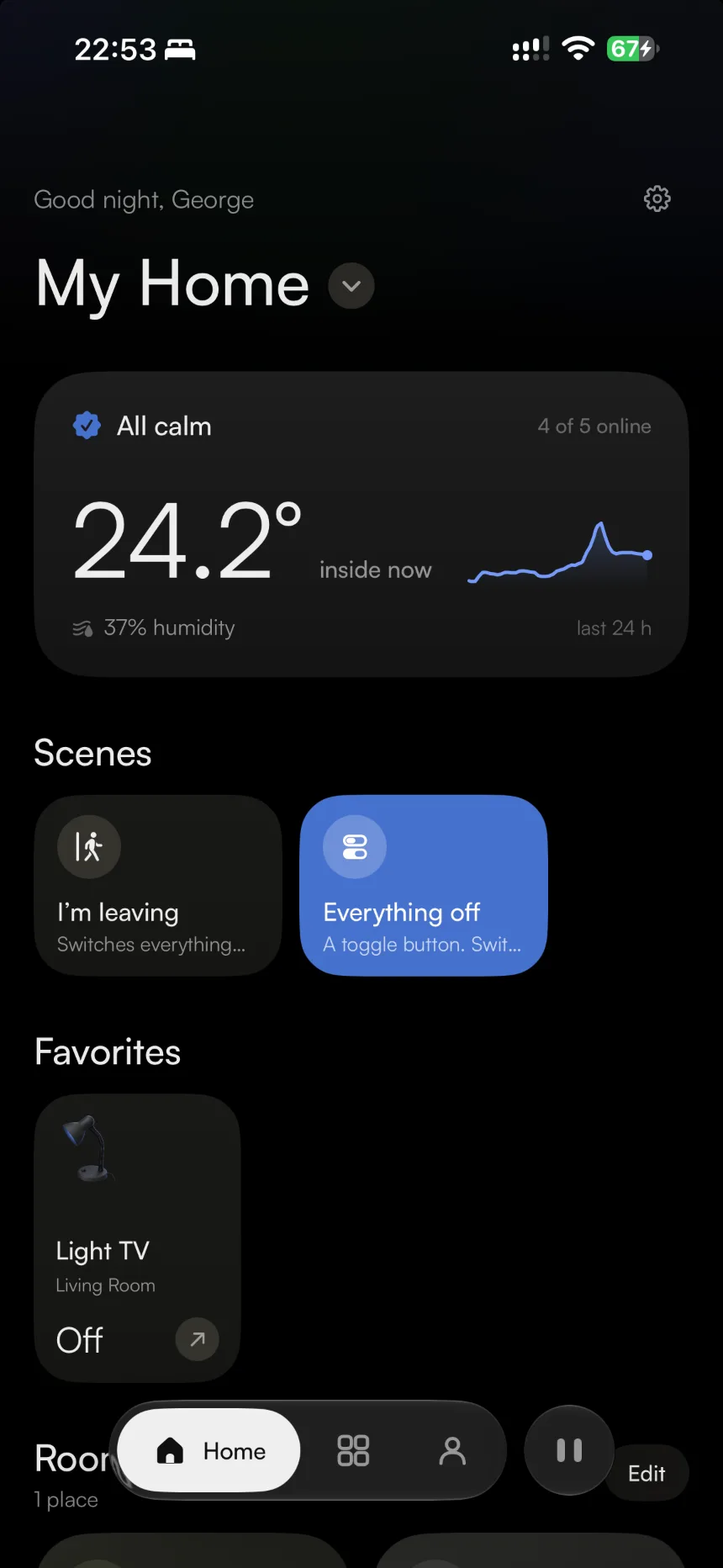
The panel at the top of Home names what needs you and offers the fix, device cards say their level, and every reading on a device’s page has a chart of its own.
HomeA sensor’s page
What needs you, by name When a door is unlocked or a device has gone offline, the panel on Home names each one: tap a row to open the device, or press Lock right there. When all is calm, it draws the last 24 hours of the temperature beside the number.
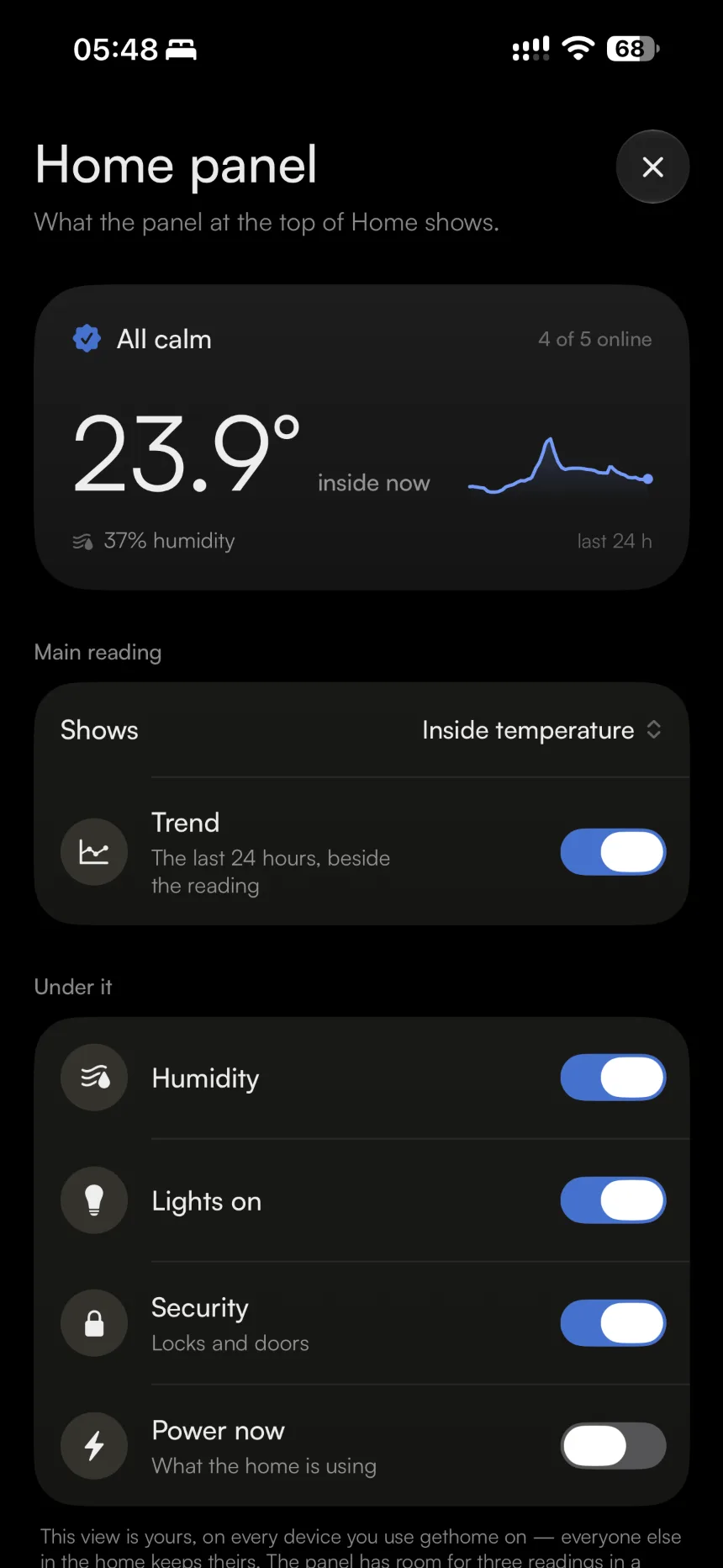
A panel that shows what you choose Home Settings → Home panel: pick the main reading, switch its trend on or off, and choose what stands under it — humidity, lights on, security, or what the home is using now. Your choice follows you to your other devices.
Cards that say their level A lit lamp’s card reads its brightness, a blind its position, a fan its speed and a thermostat its target. Tap the ring round a card’s picture to set the level on a glass column beside it, without opening the device.
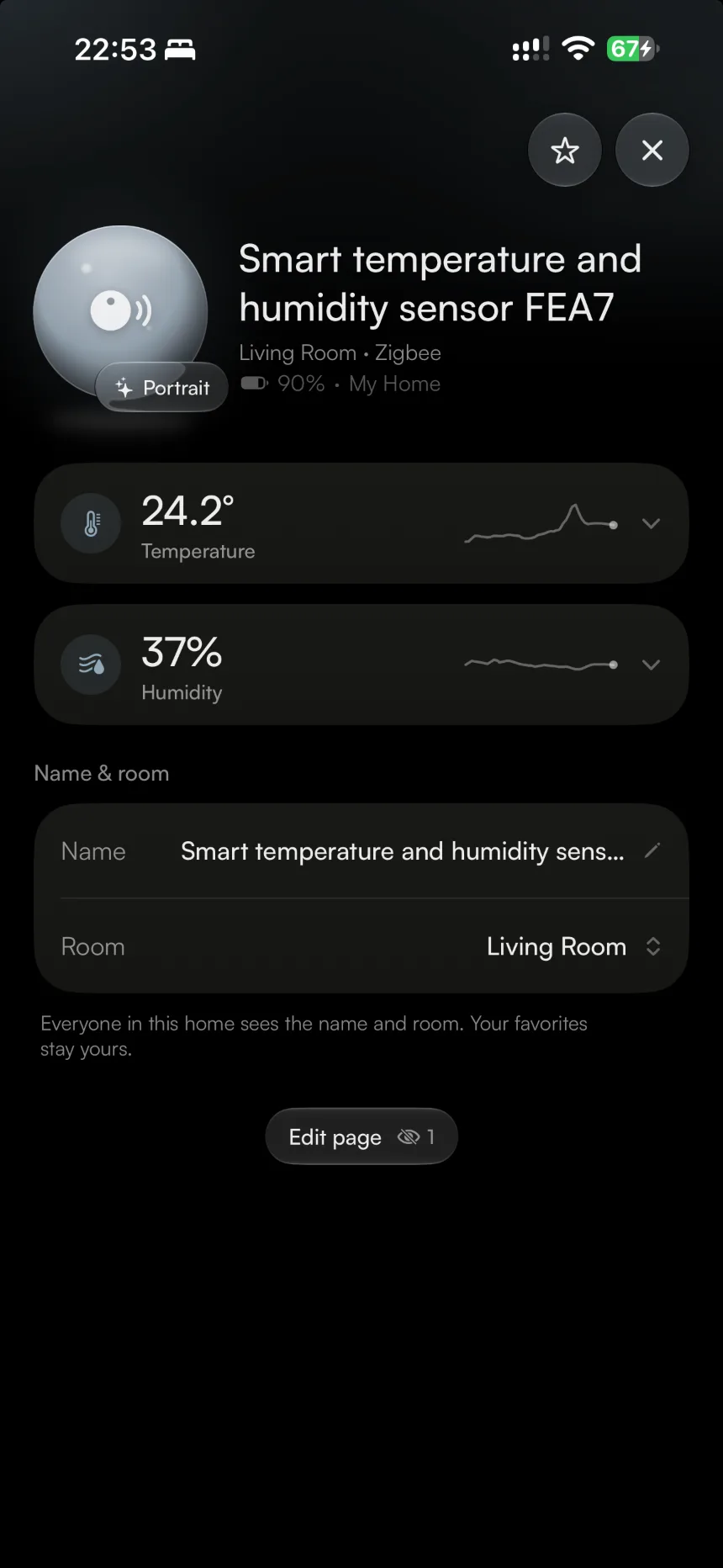
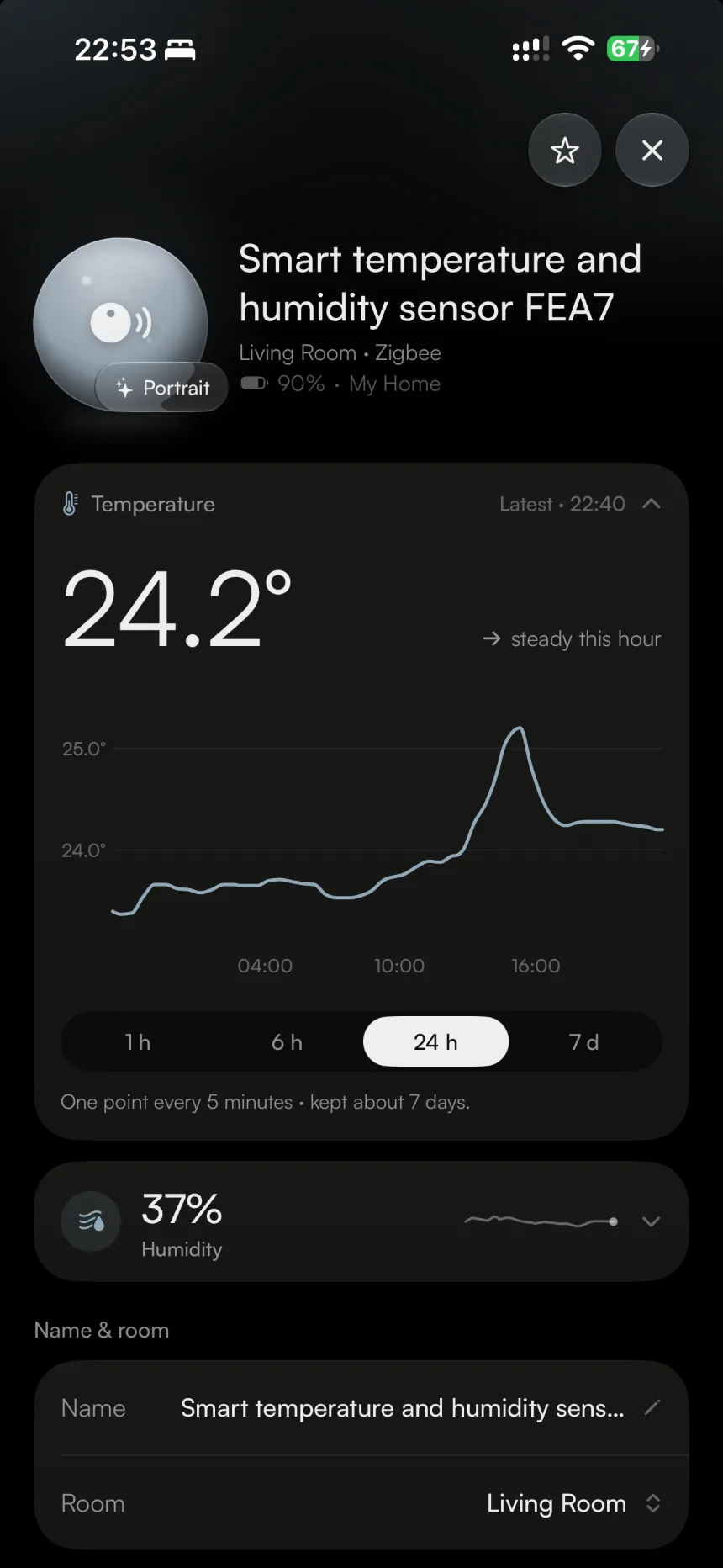
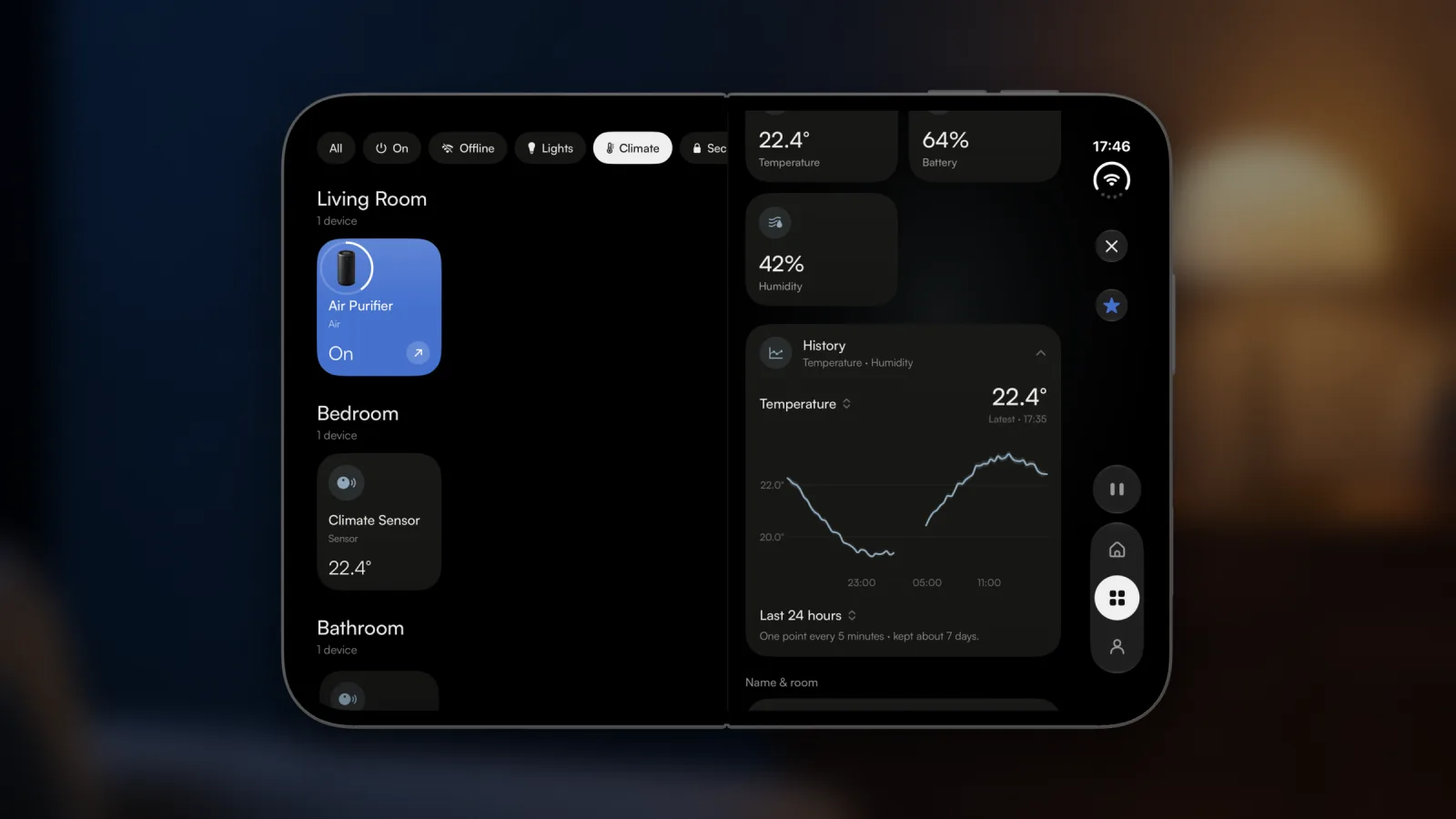
A chart for every reading On a device’s page, temperature, humidity, air quality and power each have a card with a chart over the last hour, six hours, day or week. A sensor’s page opens on a short header, with its first reading already open.
Search your devices, narrow what happened In a home of nine devices or more, the Devices tab has a search — by name, room or kind. And Recent can be narrowed to a kind of device, a room, or one device.
The trend on Home and the charts on a device’s page need a hub home: both are drawn from the history your hub keeps, about a week of it.
See whether a rule is working
— gethome for iPhone 1.0.10 · gethome Hub 0.1.6
Each automation now says when it last ran and how often today — and, in amber, what didn’t happen. A rule’s page shows its day in numbers and tells every run in plain words.
A line under every rule When it last ran and how many times today, when a button was last pressed, since when a mode has been on, or when a rule on a clock runs next. Amber is kept for a problem, in a sentence: Hall lamp didn’t answer.
The rules you press, apart from the rest The list is two groups now: Buttons & modes, and Runs by itself.
A rule’s day Recent runs opens with today in numbers — runs, done, problems — over a strip of the last 24 hours, one tick for each run.
Runs in plain words Motion in the Living Room, then Motion LED turned on, with how long it took. A lamp that was already on isn’t counted as a problem; one that was offline is.
A hub home, and an up-to-date hub.
Write to us from Studio, and set how hard each agent thinks
— gethome Studio for Mac 1.1.2
Send an idea or a problem from Studio’s Help menu. On a hub’s AI tab, choose how hard each agent thinks, and read the run log back to the first run your hub kept.
Send feedback Help → Send Feedback… opens a small window for an idea or a problem, with a line saying exactly what goes with your message. Your address goes only if you ask for a reply.
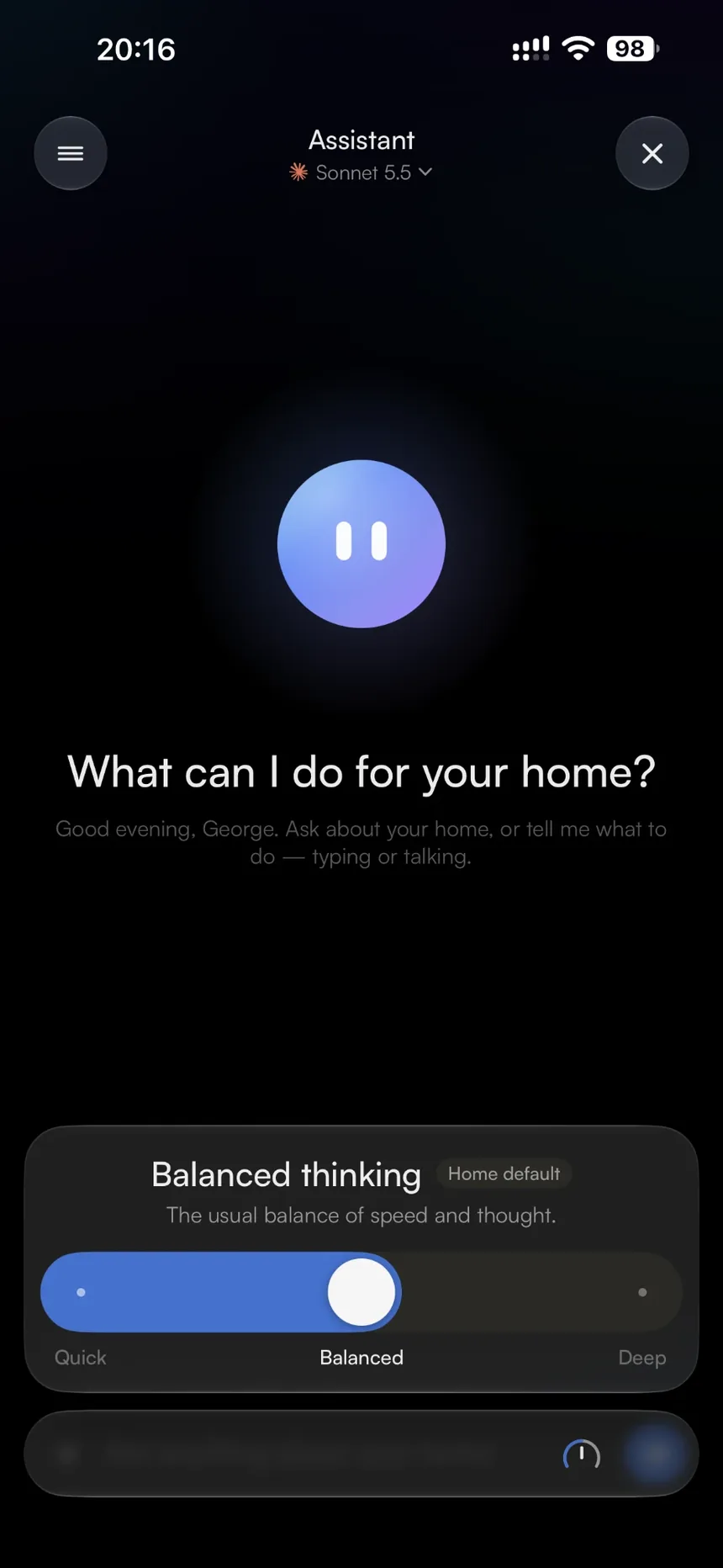
How hard each agent thinks Under each agent’s model on the AI tab: Quick, Balanced or Deep. A chat in the iPhone app can still choose its own.
The whole run log Show earlier runs now goes back to the first run your hub kept, and drawing a room and placing its devices each have a name of their own there.
What goes out, said in full The privacy line on the AI tab now names every photo your hub sends, and the drawn room that goes out again to find where its devices stand.
Choosing how hard each agent thinks and reading the log all the way back need an up-to-date hub.
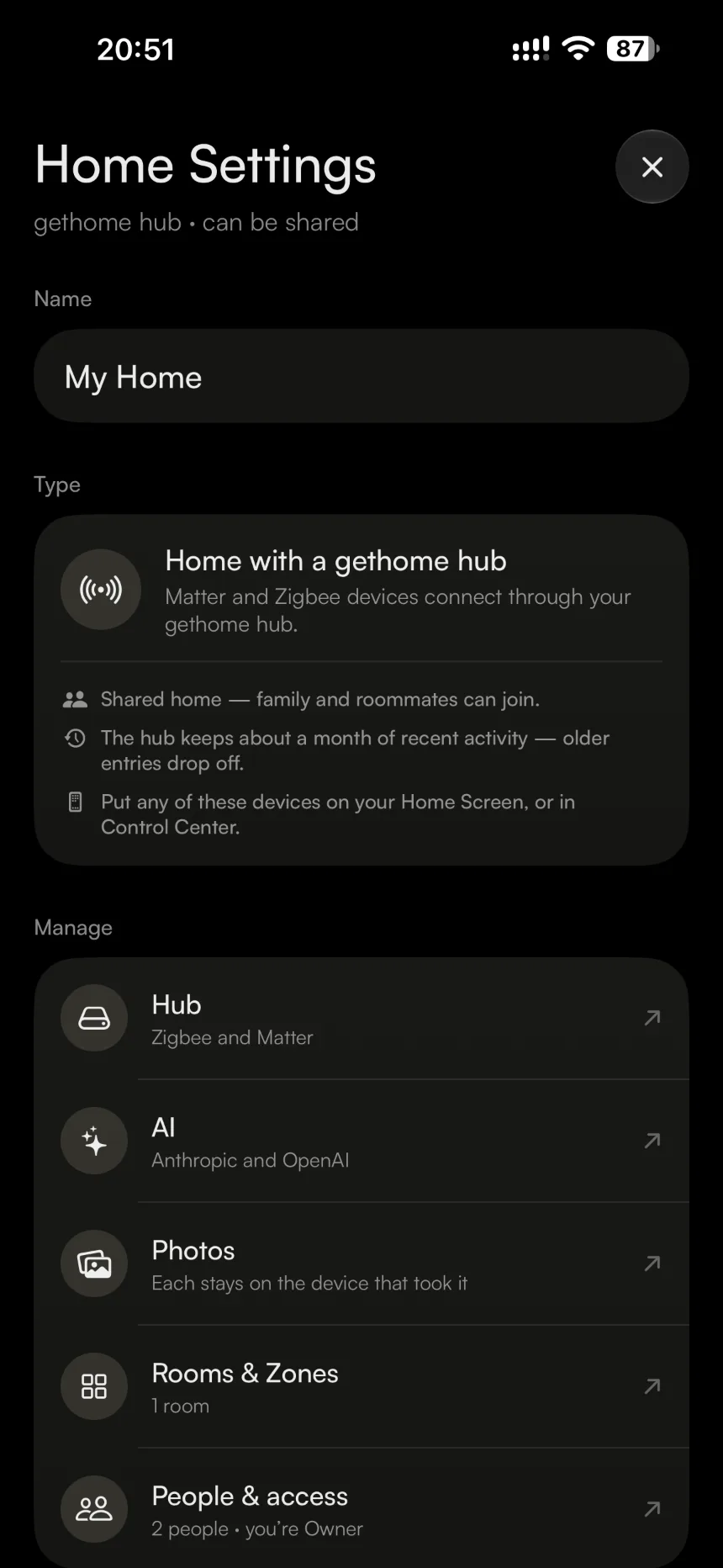
Photos kept on your hub, if you choose
— gethome for iPhone 1.0.9 · gethome Hub 0.1.6
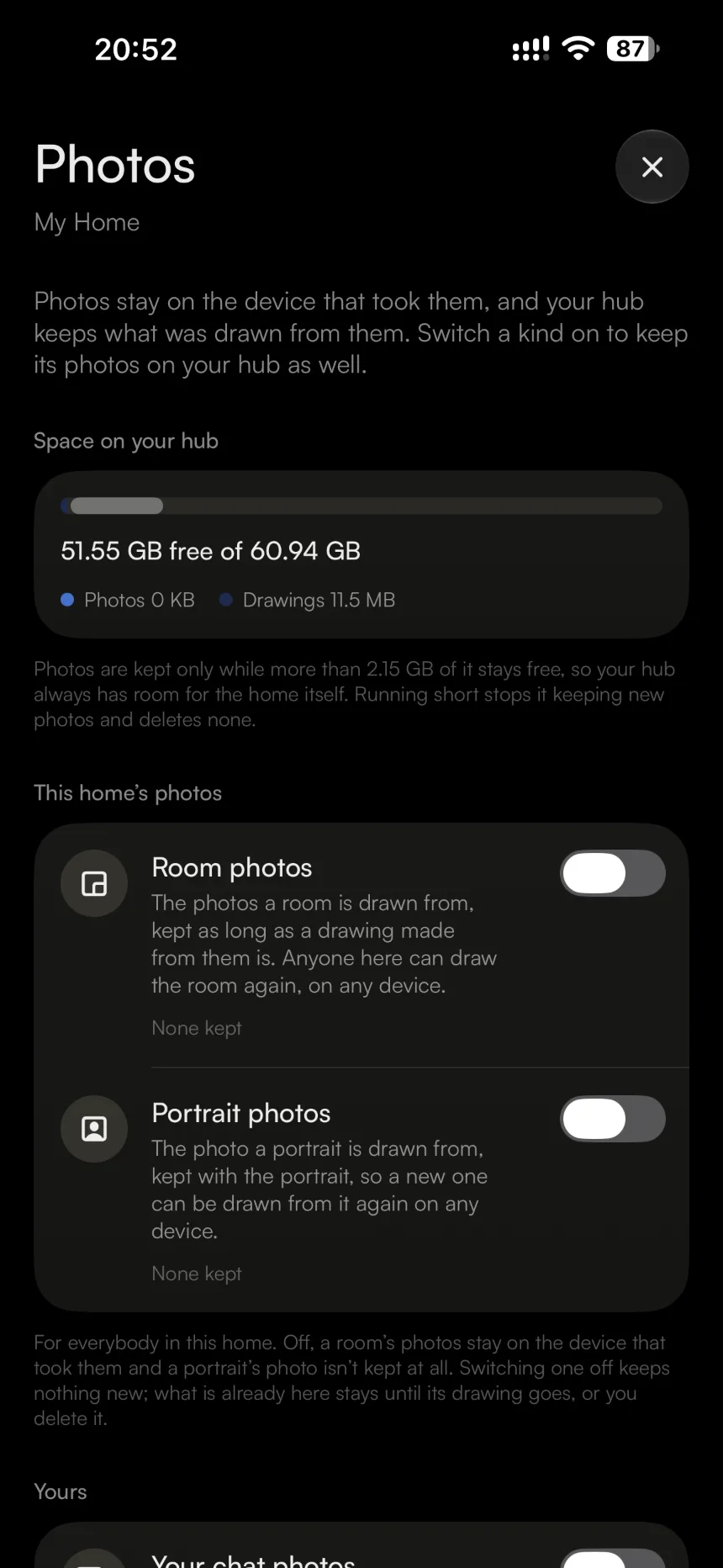
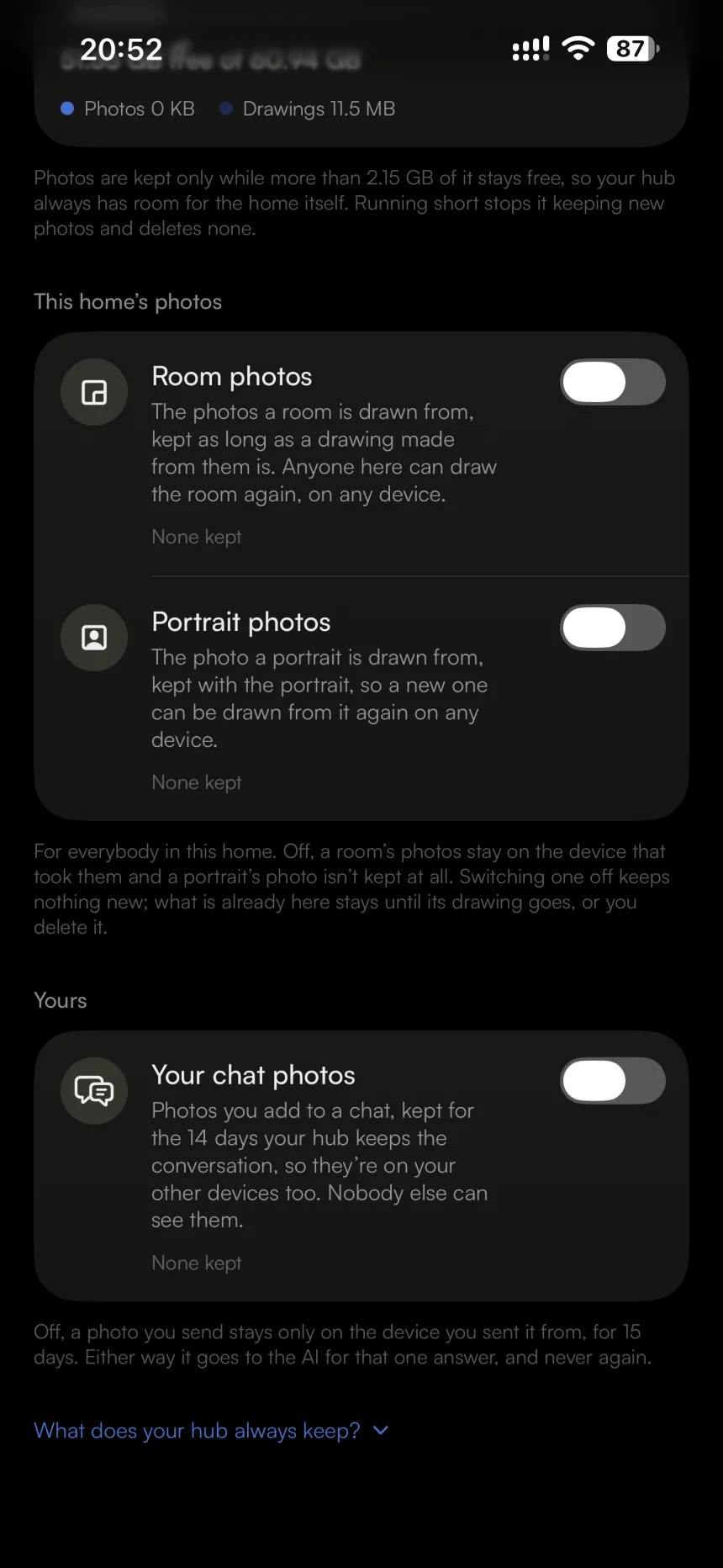
Let your hub keep the photos your rooms and portraits are drawn from, and your own chat photos: anyone in the home can then draw a room or a portrait again on another device, and what you send in a chat reaches your other devices. Nothing is kept until somebody switches it on.
Photos
A Photos page in Home Settings Switch on room photos and portrait photos for everybody in the home, and your chat photos for yourself, with your hub’s free space beside them. Each kind has its own Delete…, and the drawings stay.
Draw it again, on any device With room photos kept, anyone in the home can draw a room again on another device, from the photos it was first drawn from — and a portrait offers Draw again from its photo.
Your chat photos, on your other devices Keep your own and they appear on your other devices for the two weeks your hub keeps the conversation. Nobody else in the home can see them.
Said before you draw The room studio and the portrait sheet say whether the photos will be kept on your hub before anything is drawn.
A hub home only. Kept photos stay on your own hub — never in a gethome cloud — and only while it has more than 2 GB free: running short stops it keeping new ones, and deletes none.
Two pages, on iPhone Duo and iPad
— gethome for iPhone 1.0.8
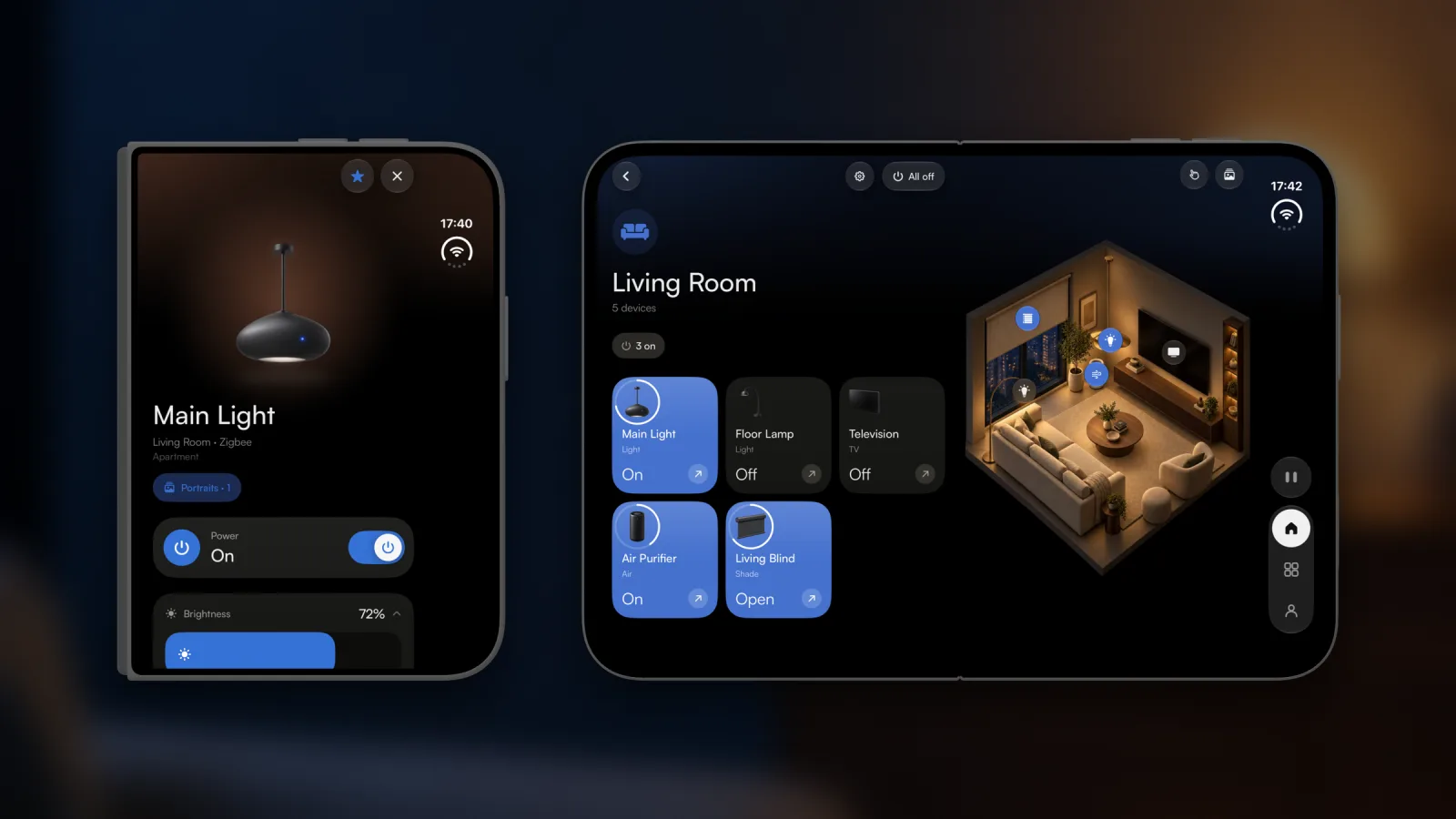
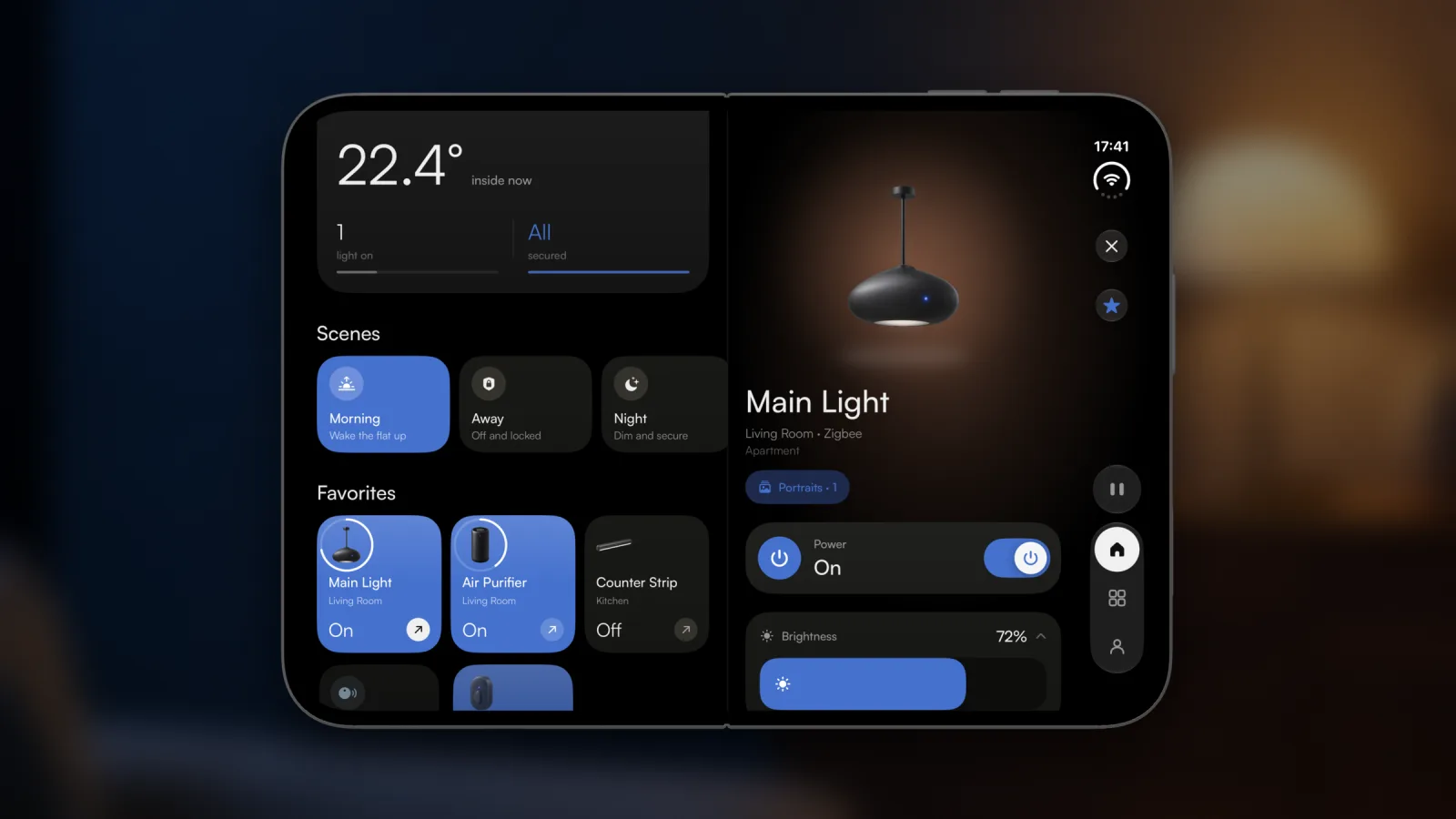
Open iPhone Duo like a book, or pick up an iPad, and gethome becomes two pages: your home on the left, the device you opened on the right — split at the Duo’s hinge, so nothing sits in the fold.
Closed and openTwo pagesA sensor’s history
Your home beside a device Open a device and its page stands on the right while your home stays on the left, the dashboard in one column; close it and the home takes both pages, the dashboard in two.
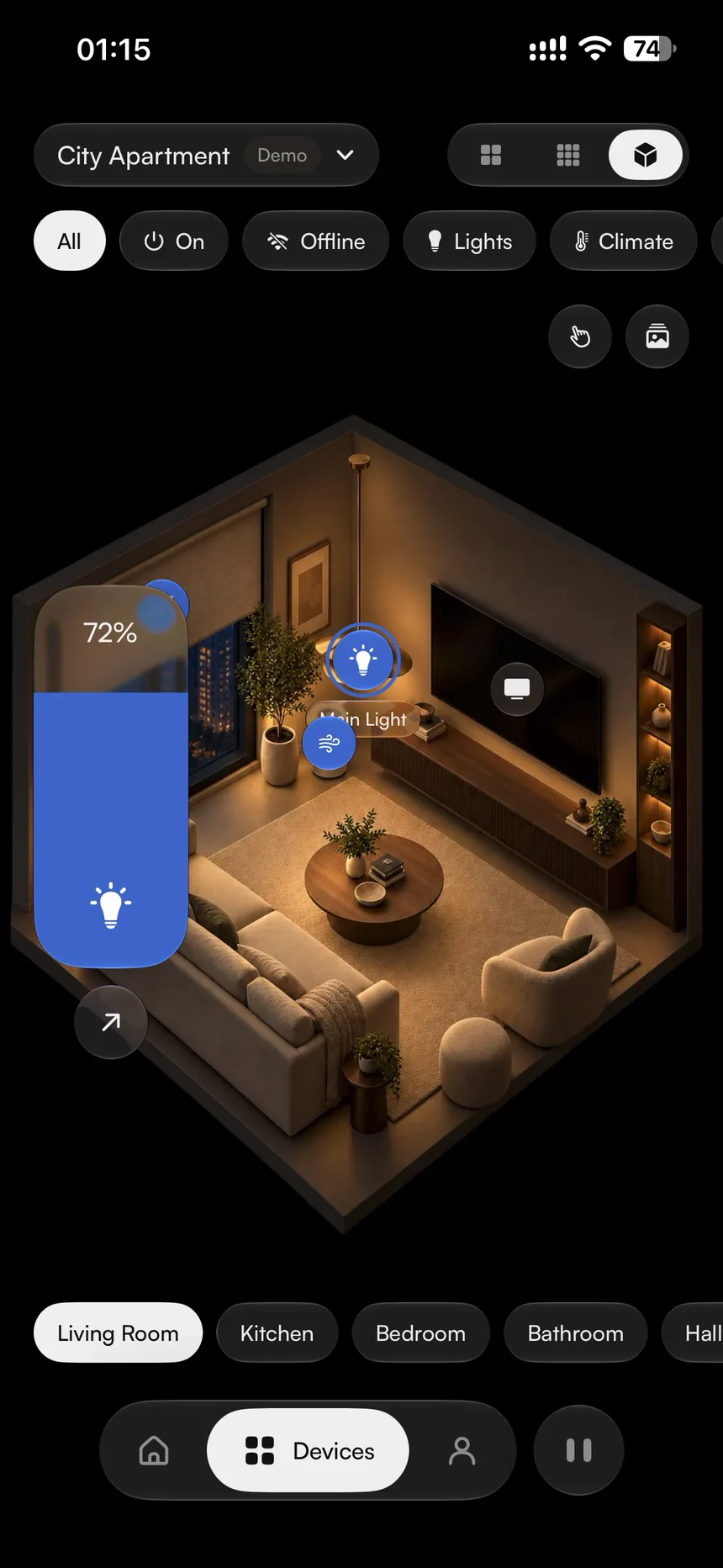
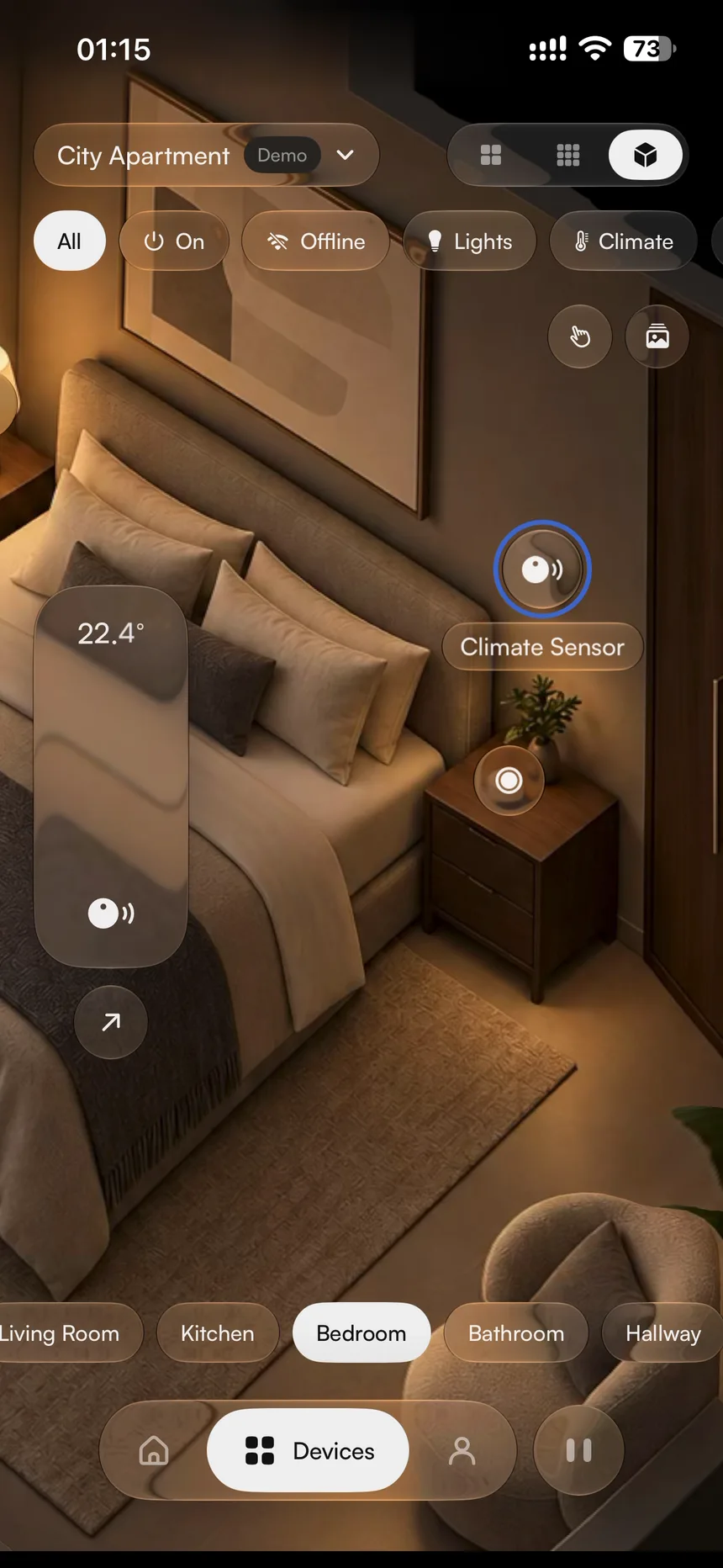
Rooms in 3D, at full width On the Devices tab’s 3D view your cards sit on the left and the room in 3D on the right, turning to whichever room you scroll to — and a room’s own page stands beside its picture.
Lists beside what you chose Home Settings opens the way Settings does on iPad, the list on the left and the page beside it. In a hub home your automations open the same way, and the assistant keeps your chats beside the one you’re in.
Fold it shut, stay where you were Closed, the Duo is the phone you know, its dock standing upright beside the status bar. Fold it shut in a conversation or a setting and you’re still there.
A keyboard and a trackpad With a keyboard on an iPad, ⌘1, ⌘2 and ⌘3 switch tabs — they’re in the View menu too — and a trackpad’s pointer lifts the card or button it rests on.
A device’s page, laid out your way
— gethome for iPhone 1.0.7
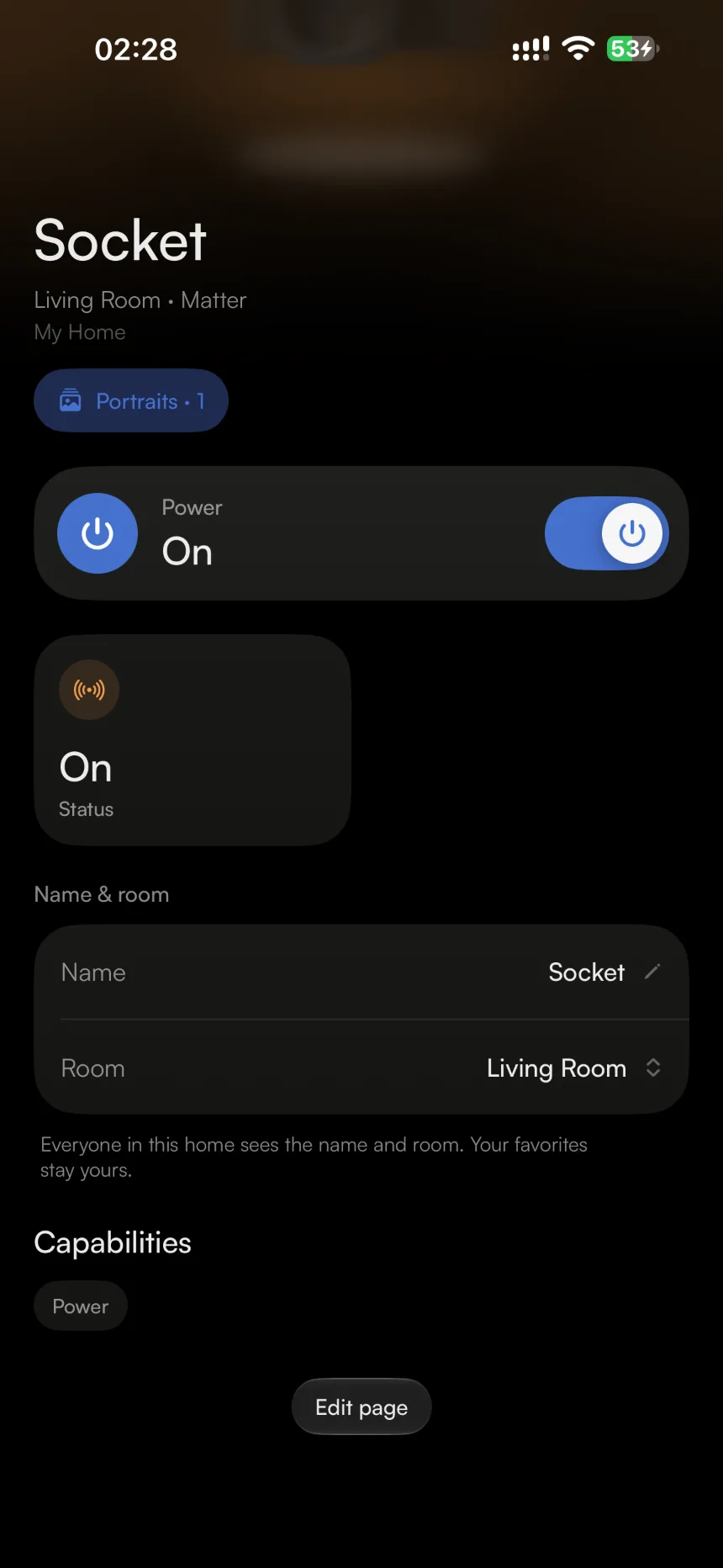
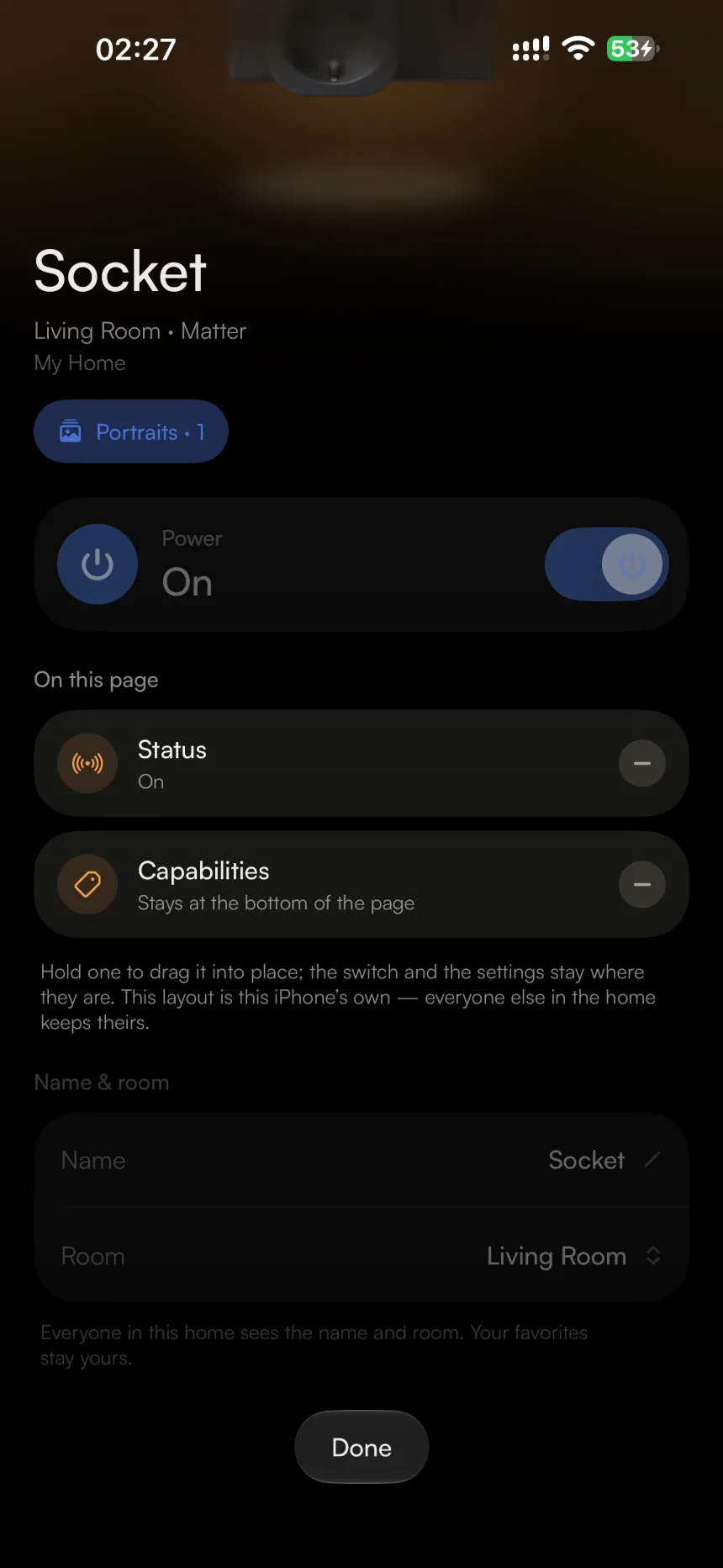
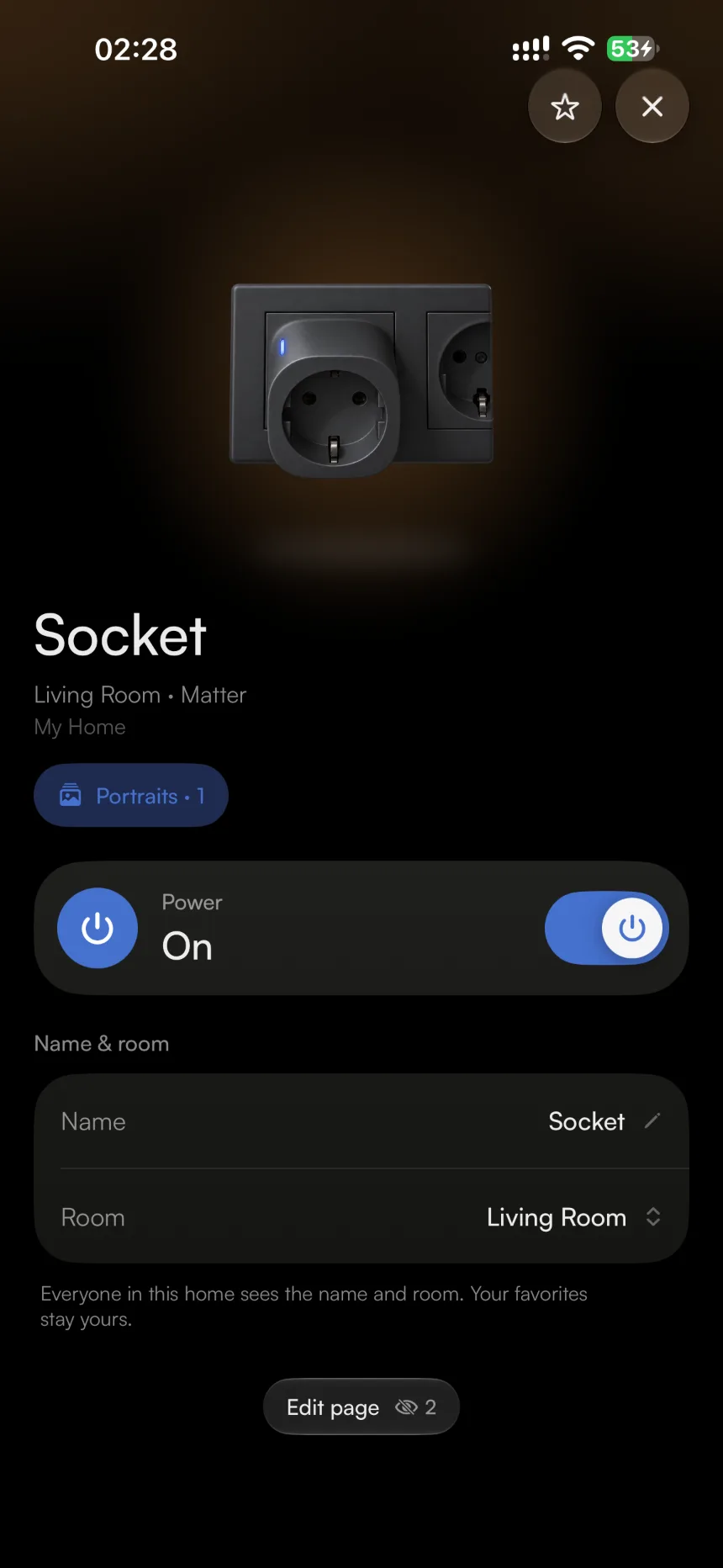
Put what’s on a device’s page in your own order, take off what you never use, and fold any control card to a single line — device by device, in every kind of home.
Edit page
Edit page At the foot of a device’s page, it turns the page into a list: hold a row to move it, tap − to take it off, and + to put it back where it was.
Nothing goes missing Edit page counts what you’ve taken off, and Reset brings the page back as it came. The switch, the settings and the name and room stay where they are.
Cards that fold Tap a control card’s header — brightness, a thermostat, an IR remote — to fold it to one line; it stays folded until you open it again. The settings start folded, since they’re set once and left for months.
A layout is yours alone, and stays on the iPhone you made it on: nobody else in the home sees it, and it doesn’t follow you to another device the way your homes do.
The assistant becomes a chat app of its own
— gethome for iPhone 1.0.7 · gethome Hub 0.1.5
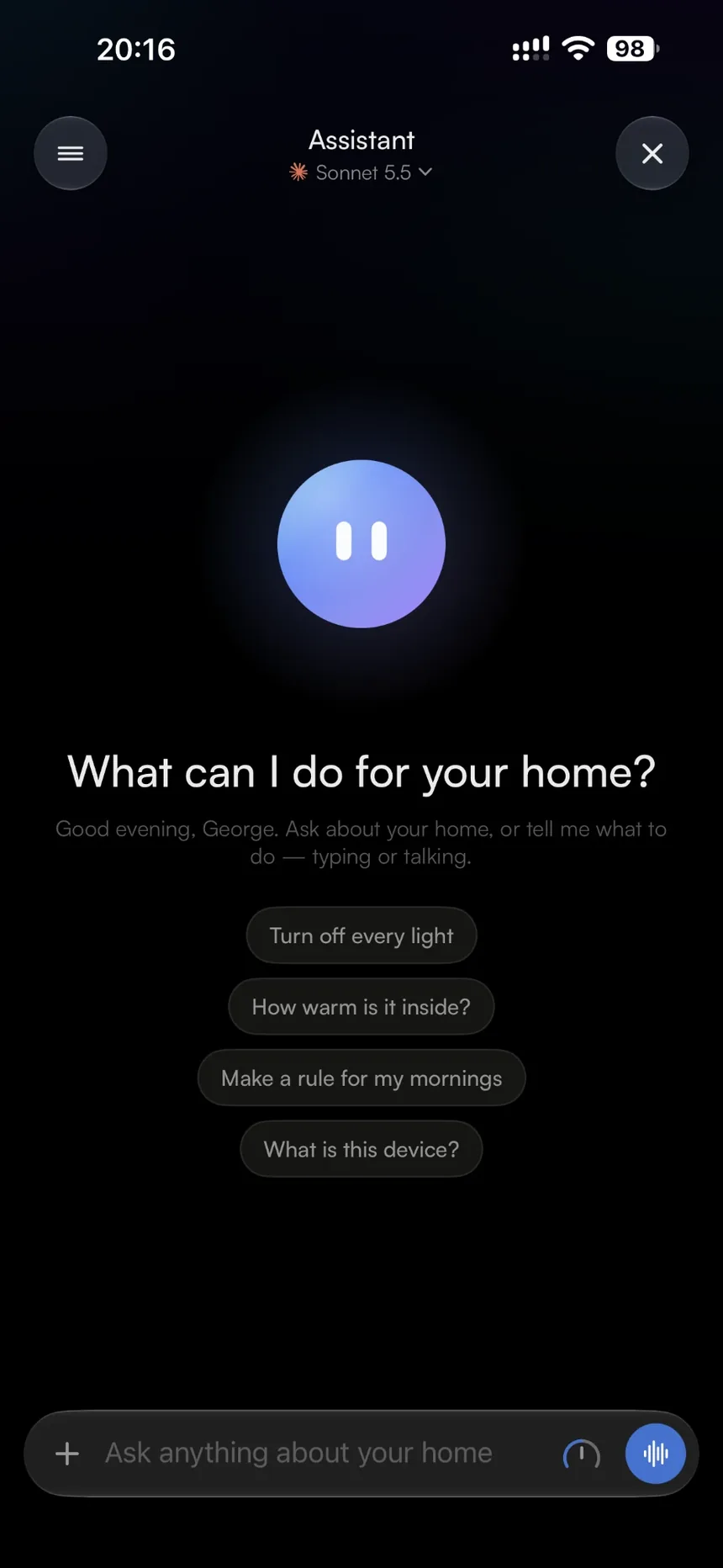
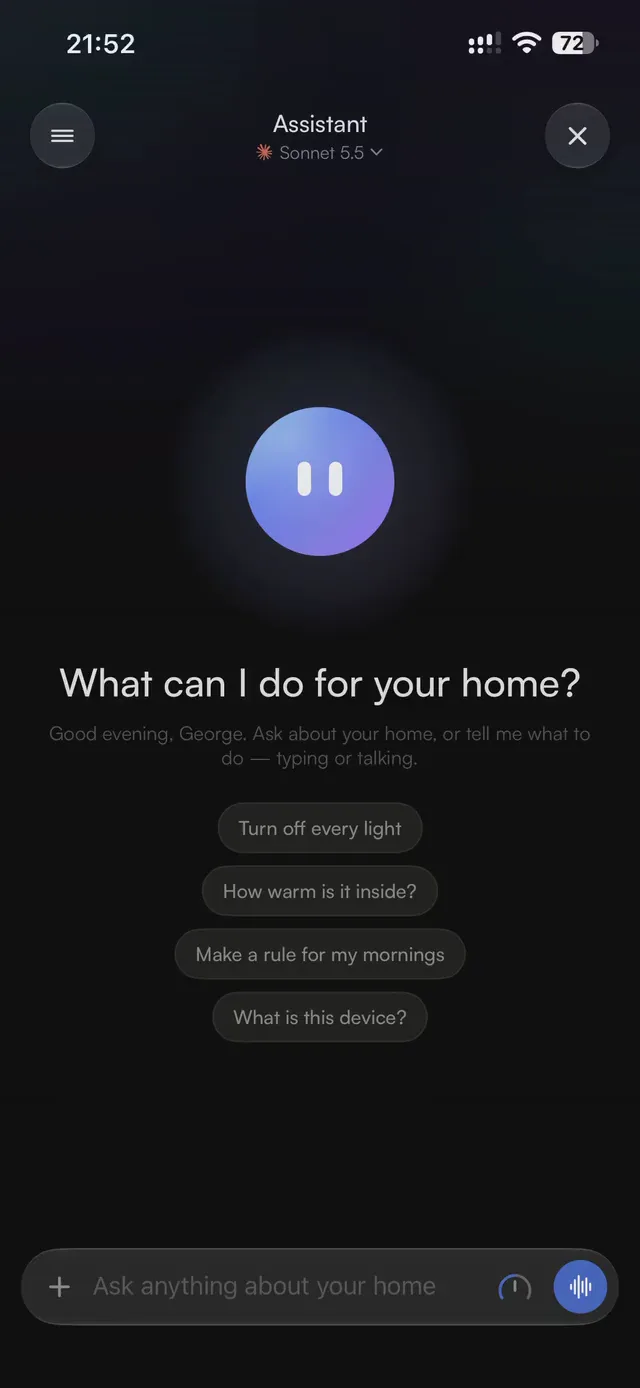
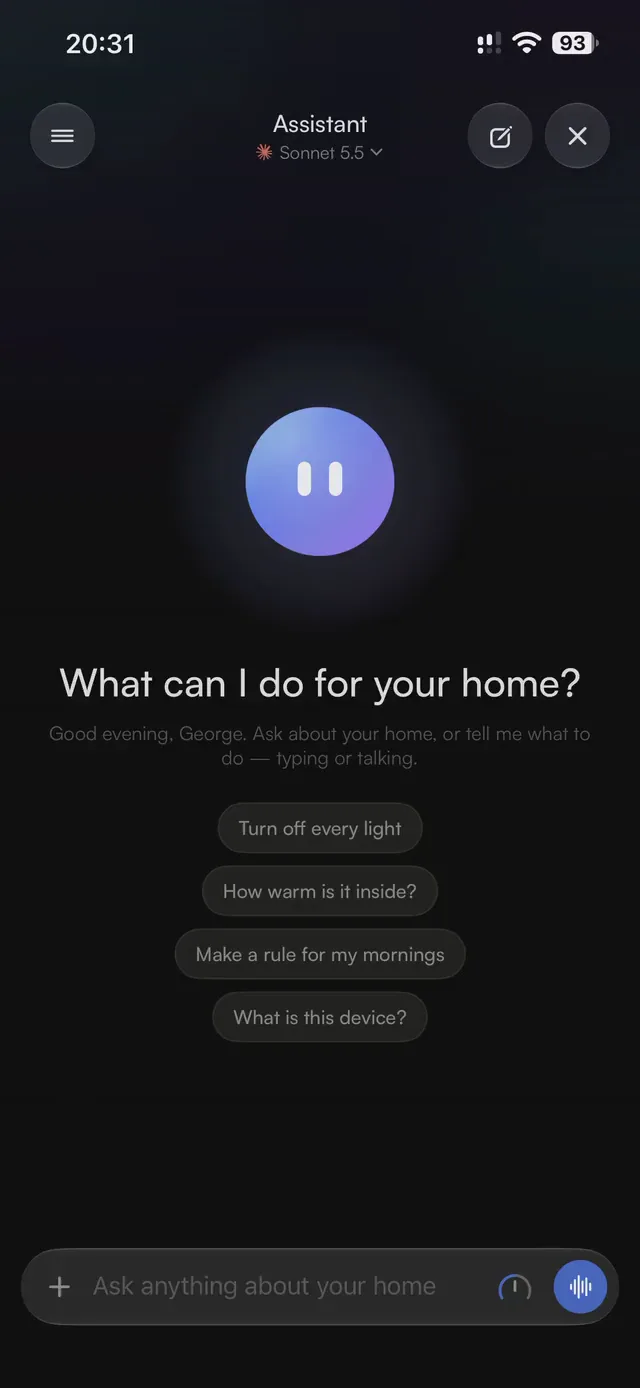
Every conversation with the assistant and the automations agent is a swipe away. Each one picks its own model and how hard it thinks, takes photos, and can be stopped part-way — or asked again when an answer fails.
The assistantA rule handed over — before and afterOut loud
Every conversation, a swipe away Swipe right, or tap the menu, for your chats with either agent from the last fortnight, each named for what it was about.
A model and a depth for each chat Pick Claude or GPT under the chat’s title — GPT-6.1 Terra is new among them — and how hard it thinks on the dial beside the send button: Quick, Balanced or Deep. Home Settings → AI now sets how hard each agent thinks, too.
Photos in a message Add up to four from the app’s own camera or a grid of your library, to ask about a device or a room. A photo goes with that one message, and the hub keeps only a note that it was there.
Stop it, or ask again Stop an answer part-way and keep what it had said. When one fails, its note says why in plain words and offers the other provider’s model, where your home has a key for it.
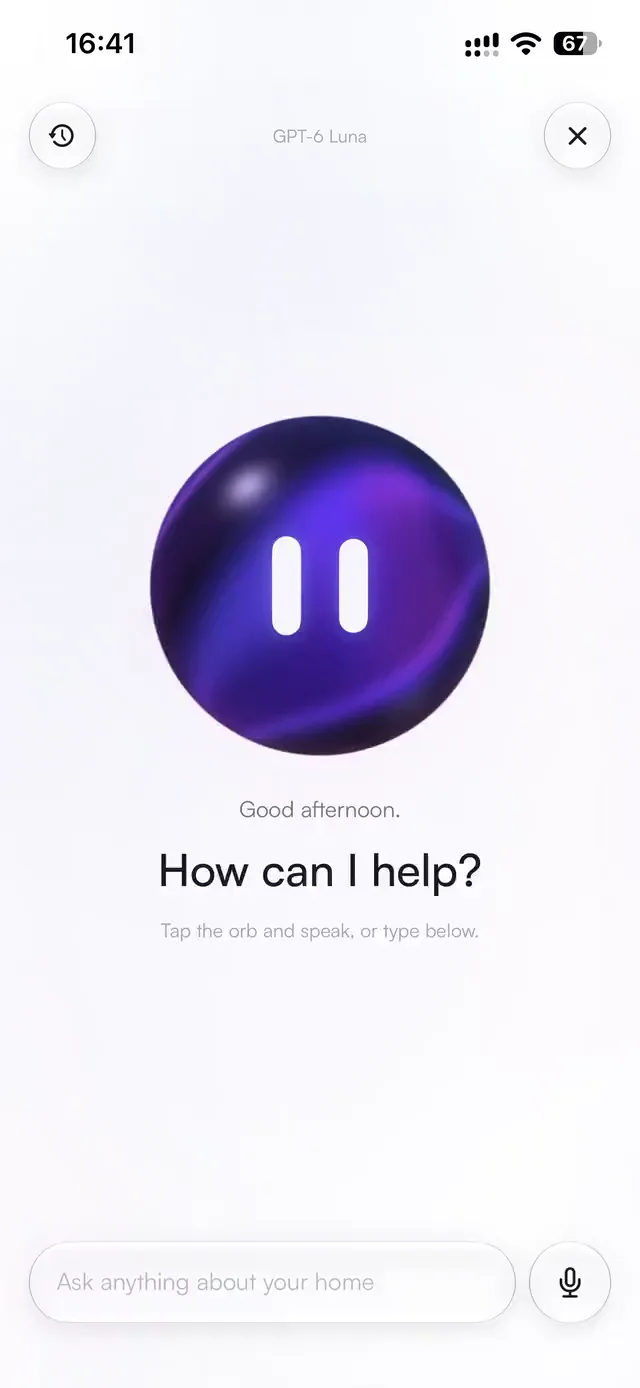
Agents with faces The assistant and the automations agent each have a face — tap the assistant’s to talk. A rule the assistant hands over arrives as the agent’s card, with its clock and its questions, and opens onto the agent’s own page.
Every language reads right Messages and answers are set in the system’s own type, so a reply in Russian or Greek reads as cleanly as one in English.
Chats are for hub homes, on the home’s own Anthropic or OpenAI key. Chat names, photos, a model or depth for each chat, stopping and asking again need the hub on 0.1.5; on an older hub a chat works as it did.
Your rooms, drawn from photos and turned in 3D
— gethome for iPhone 1.0.6 · gethome Hub 0.1.4
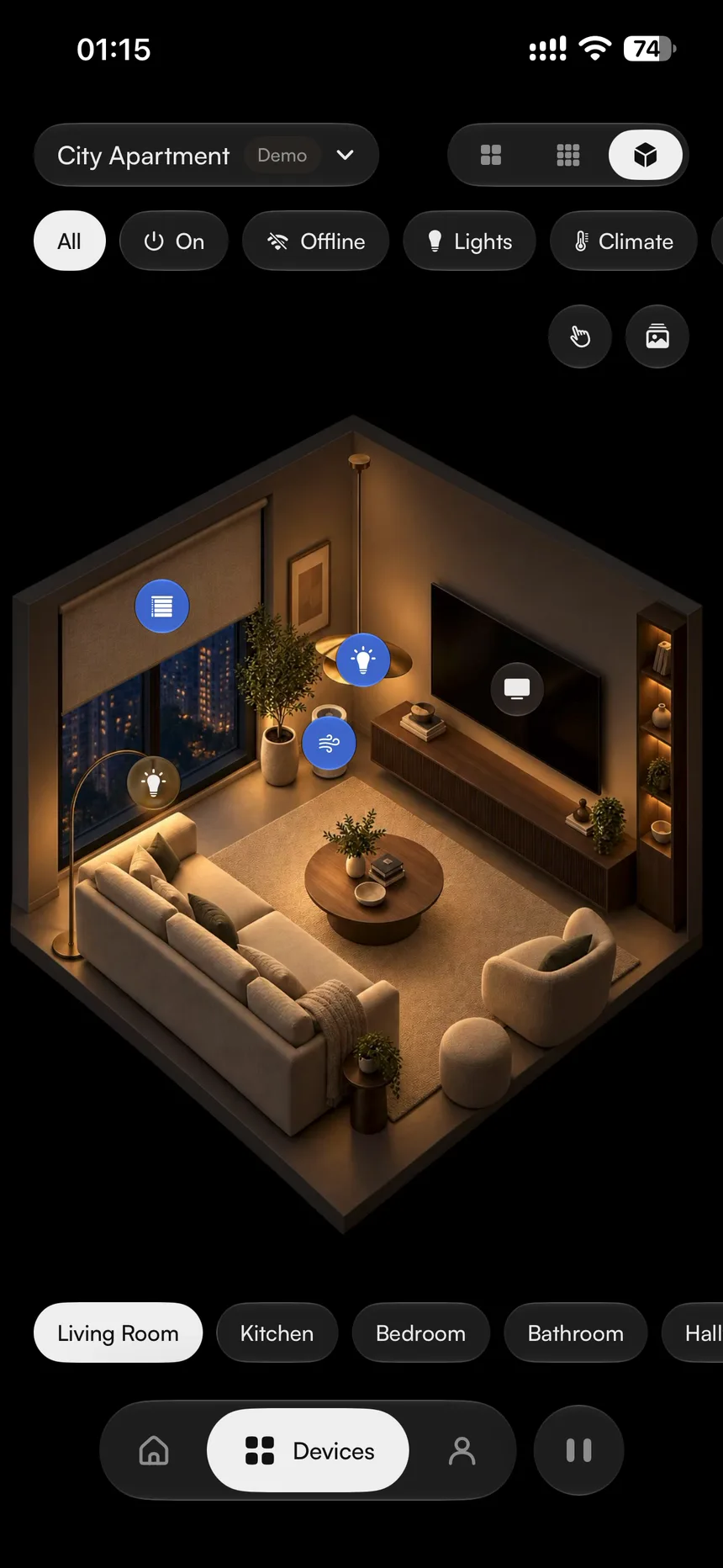
Photograph a room and AI draws it as a cutaway of the real thing, by day and by night. The app lifts it into 3D, with your devices standing on it, ready to tap.
Rooms in 3D
Drawn from your photos Take a few from the room’s corners, or choose some you have, and it comes back drawn — its own furniture, colours and materials, and nothing the photos don’t show.
Turned in 3D The Devices pane’s third view shows one room at a time, lifted into depth on your iPhone: turn it a little, or pinch into a corner.
Devices where they stand On a hub, the hub reads where each device stands on the picture, and you can drag any of them to where it really is. Tap one and a glass column beside the room switches it or sets its level.
Five drawings a room Each room keeps its last five, by day and by night, and you choose the one it shows — on a hub, for everyone in the home.
Drawing a room needs an OpenAI key — the hub’s, or your iPhone’s in a home without one — and your phone asks before photos go; a hub draws once it’s on 0.1.4. You can try rooms in 3D in a demo home with no key at all.
A hub that updates itself while the house is quiet
— gethome Hub 0.1.4 · gethome for iPhone 1.0.6 · gethome Studio for Mac 1.1.2
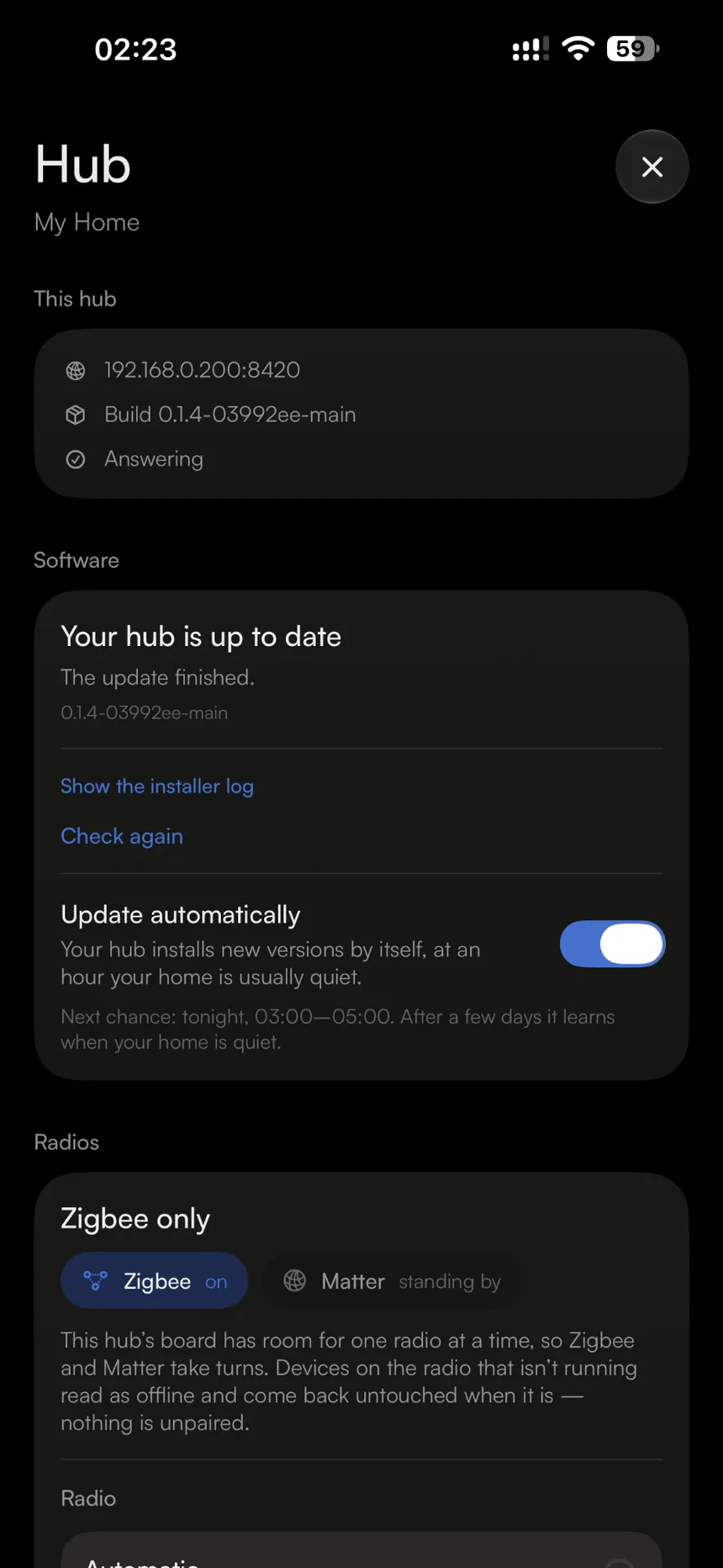
Switch on automatic updates and the hub installs new builds by itself, in the hours its home asks least of it — and only once nobody is using the house.
The Software card
Its own quiet hours The hub learns which two hours of the day its home uses least, from the last fortnight, and starts out with 3 to 5 in the morning until it has a few days to go on.
Never in the middle of something It waits until nobody has used the home for half an hour, no automation is running or about to, and nobody is pairing a device.
Only builds that have settled A build goes in once it has been out for a day — sooner only on a hub a week behind — and if a build the hub put in rolls back, it never tries that one again by itself.
On the Software card The switch is on the hub’s page in the app and in Studio, with a line saying when it next may update, and the home’s history notes who switched it and every update the hub started itself.
Off on every hub until somebody in its home who may update it switches it on. Updating by hand is as it was, and so is the rollback when a build won’t start.
Watch a portrait come together, and see how far along it is
— gethome for iPhone 1.0.6
While a portrait is drawn, the photo breaks into a field of cells in its own colours and the portrait condenses out of them, with a number saying how far along it is.
Drawn out of cells The photo flies into the canvas and breaks up into cells that flow while the portrait is drawn, then give it back cell by cell.
How far along A percentage in the canvas’s corner, on the device’s page and in its portrait sheet — an estimate, from how long this iPhone’s last few drawings took.
Into its page The finished portrait flies to its place on the device’s page — and on a hub home, closing the studio mid-drawing goes straight back to that page, still drawing.
Your homes follow your Apple Account
— gethome for iPhone 1.0.5
Open gethome on another device signed in to your Apple Account — a new iPhone, say — and your hub homes and demo homes are already there, signed in as you, with your name and the order you put things in.
Signed in as yourself A hub home that arrives signs itself in as you through iCloud Keychain, so your favorites, your conversations and your line in the home’s history come with it, with no code to fetch. Your own OpenAI key, for homes without a hub, comes the same way.
Every home, once Devices that already had different homes end up with every hub home and demo home between them, each one once. Your name, how device cards look and the order of your homes, rooms, devices and Favorites follow you too.
Leave once Leaving or removing a home takes it off your other devices as well, and the sheet says so before you confirm.
Not signed in, said plainly A hub home your device isn’t signed in to — or that an owner has removed you from — now says so on every screen, and offers the way back: a sign-in code, or an invite if you were removed. It no longer says it can’t reach a hub that answered.
Both devices need to be signed in to iCloud, and signing in by itself needs iCloud Keychain — without it, a sign-in code does the same. A hub home still works only on the hub’s own Wi-Fi, and a home brought in from Apple Home stays on the device that brought it in.
Move a hub to a new home, and give your scripts a key
— gethome Studio for Mac 1.1.1
Tell a hub about the Wi-Fi where it’s going before you move it, and Studio finds it again once it’s there. People & access now makes API keys for your own scripts and agents.
Other Wi-Fi networks A hub’s Overview lists the networks it knows and adds or removes one; the last screen of setup offers the same. Studio says when a hub can join only 2.4 GHz networks.
A moved hub is found again When a saved hub stops answering where it was, Studio follows it to its new address by itself. A device left on the old Wi-Fi is shown as being there, not as broken.
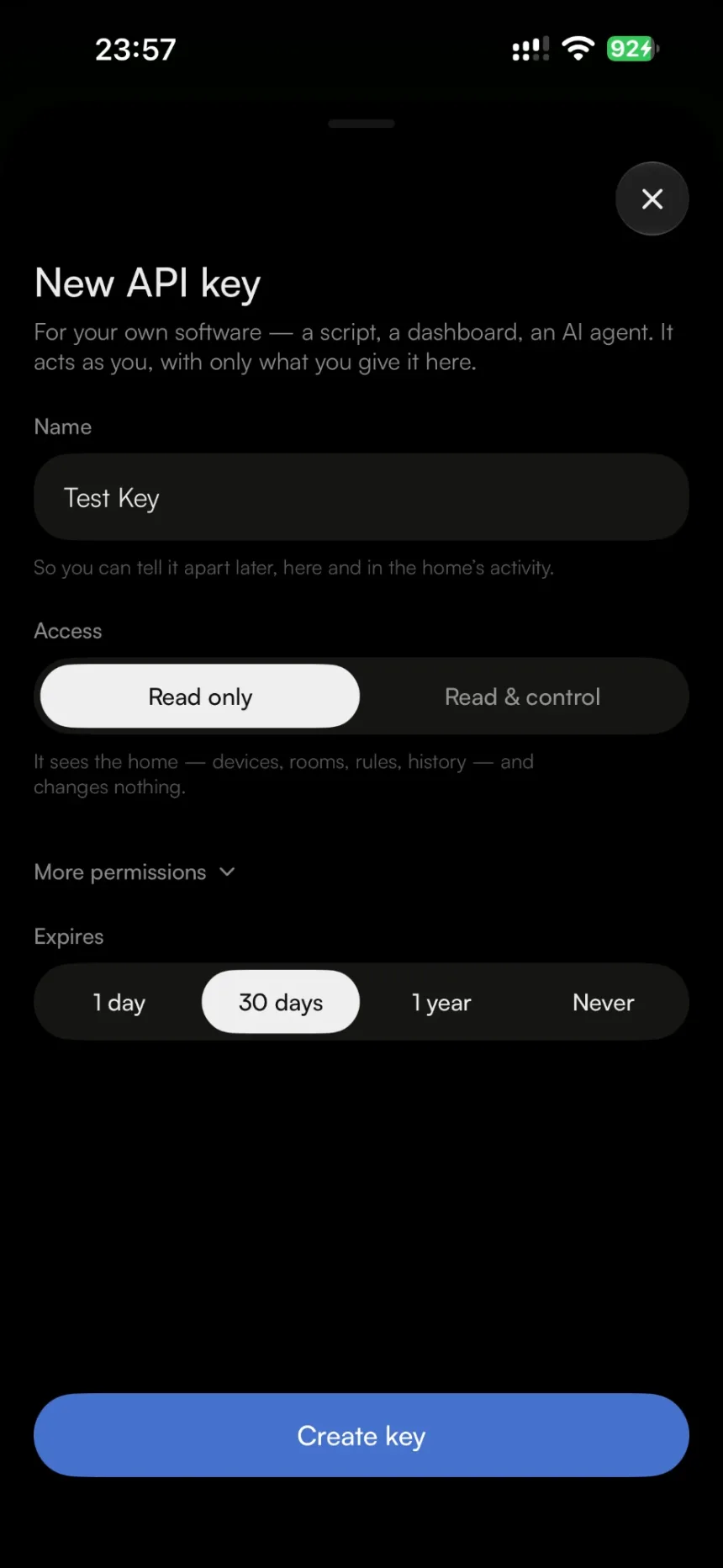
API keys People & access makes a key that can read, or read and control, with an expiry. It’s shown once to copy, and each key says when it was last used and can be revoked.
See what you typed Every password field has an eye that shows the password, so a Wi-Fi password is right before the hub needs it.
Wi-Fi networks and API keys need an up-to-date hub; on an older one, Studio says that updating it adds them.
A key for your own software
— gethome Hub 0.1.3 · gethome for iPhone 1.0.4
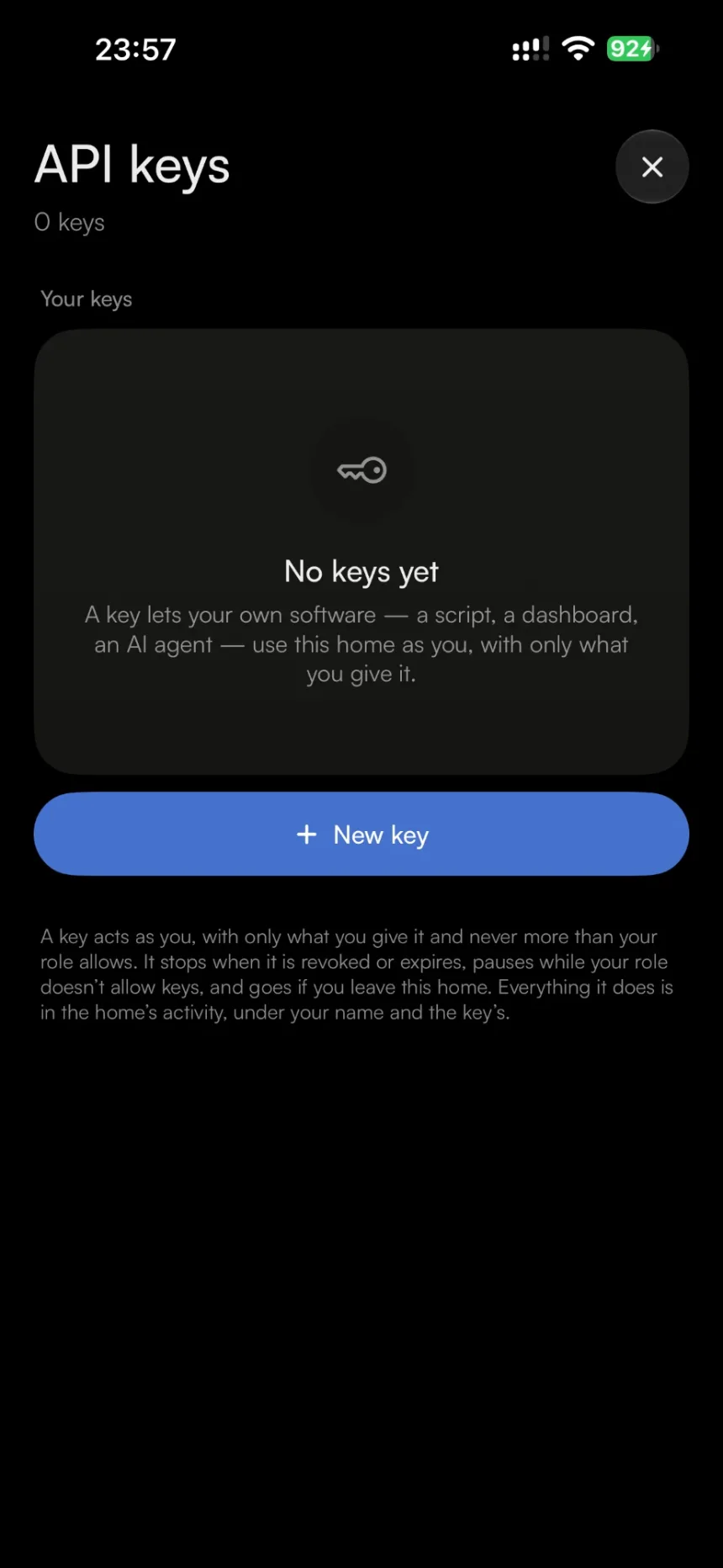
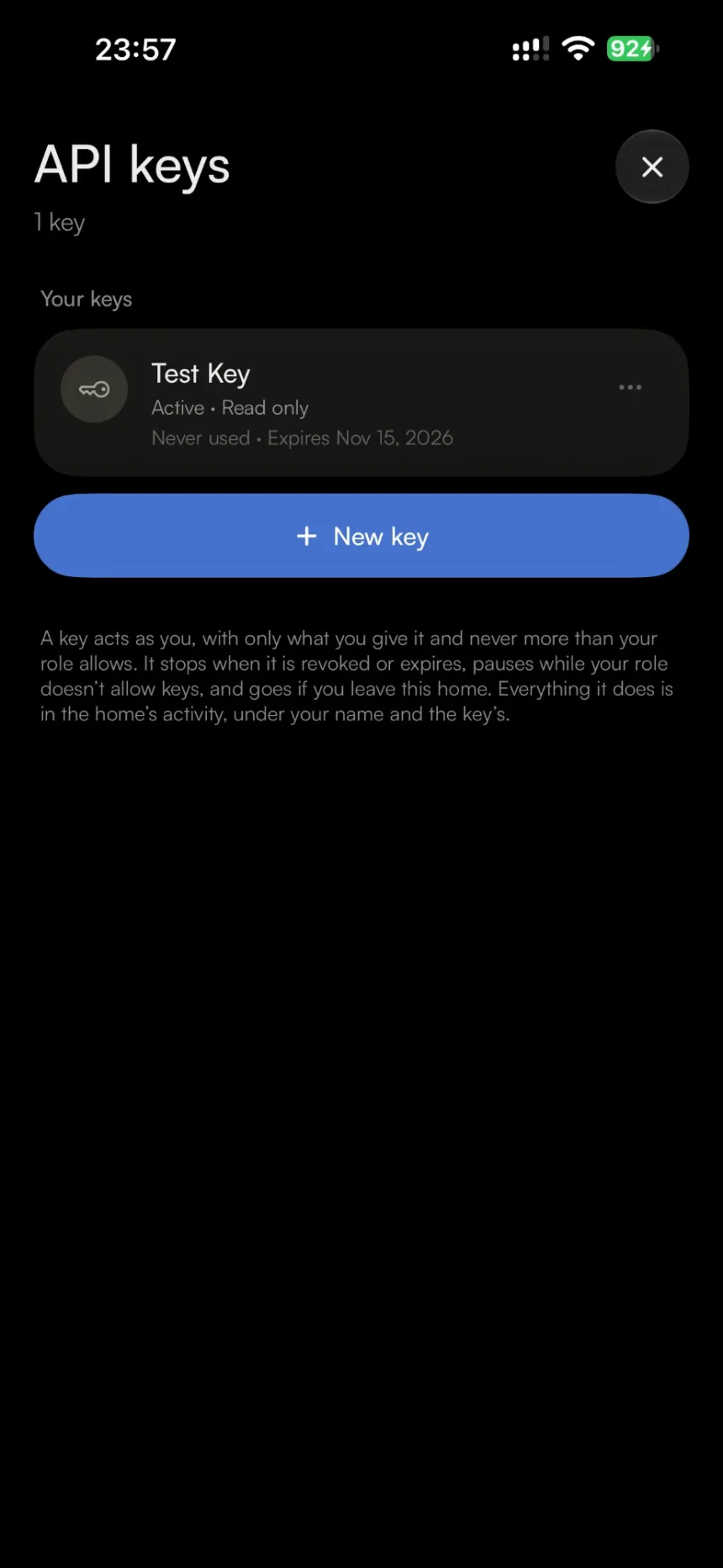
People & access now makes API keys, so a script, a dashboard or an AI agent can use the home as you — with only what you give it. Each key says when it was last used, and stops the moment you revoke it.
People & access → API keys
Read only, unless you say so A new key sees the home and changes nothing; Read & control lets it work devices, scenes and modes. It never holds more than your role allows, and no key may make another, change who’s in the home or read its conversations.
Shown once The key appears once, to copy, and leaves the clipboard after ten minutes. The hub can’t show it again, so a lost key is replaced rather than recovered.
Every key accounts for itself Its row says whether it’s active, paused or expired, when and from where it was last used, and what the hub last refused it. What it does is in the home’s activity, under your name and the key’s.
Skills for your coding agent Two agent skills teach Claude Code, Codex, Cursor and others to build on a hub: software that uses the home through a key, and a board of your own that joins it as a device over MQTT.
API keys are for hub homes and, like the apps, work on your own network. Read & control includes the locks — a key with it opens any door you can — and a Guest can’t make keys unless their role is changed.
A hub that gets itself back on the network
— gethome Hub 0.1.3
The hub now puts right, by itself, three faults that used to need somebody to restart it — or, for one of them, to repair its card.
Connected, and passing nothing When its Wi-Fi says connected but nothing on the network has answered for five minutes, the hub restarts its Wi-Fi radio, and then itself if that doesn’t help — never more than once an hour, and never for a router that’s simply switched off.
A power cut at the wrong moment Unplugged just after it was switched on, a hub could lose its Wi-Fi settings and stay off the network until its card was repaired on another computer. It now keeps a copy and puts it back.
IPv6 back after the router drops A router that went away and came back could leave the hub without IPv6 until it restarted, so it couldn’t reach a Thread accessory, which has nothing but IPv6. It now turns IPv6 back on by itself.
Move a hub, and the app finds it there
— gethome Hub 0.1.3 · gethome for iPhone 1.0.4
Tell a hub about the Wi-Fi where it’s going before you unplug it, and it joins that network when it gets there. The app then finds it at its new address by itself.
Wi-Fi networks on the Hub page Home Settings → Hub lists the networks a hub knows, adds the one where it’s going and removes the ones it no longer needs — never the one it’s on. When the hub joins 2.4 GHz only, the form says so.
Found at its new address When a saved hub stops answering where it was, the app looks for it on the iPhone’s Wi-Fi and takes its new address, once the hub proves it’s the same one.
Devices left behind say where they are A Wi-Fi Matter accessory stays on the network it was given, so after a move the app shows it as offline on that network, not as something needing attention. It answers again once the hub is back there.
See what you typed Wi-Fi password fields — adding a network, pairing a Matter accessory — have an eye that shows the password, so a typo is caught before the hub needs it.
It needs a hub whose system manages Wi-Fi with NetworkManager, as Raspberry Pi OS Bookworm and later do. The hub won’t join a network without a password, a WPA3-only one can’t be added from the app, and a Wi-Fi Matter accessory that moves for good has to be paired again where it goes.
Fable 5.1, Haiku 5.5 and GPT-6.1 Sol in the AI menus
— gethome Hub 0.1.2
Claude Fable 5.1 joins every AI menu above Opus 5.5, and Haiku 5.5 is the quickest Claude for the assistant and the automations agent. GPT-6.1 Sol takes GPT-6 Sol’s place, and a home that chose GPT-6 Sol moves to it once its hub updates.
Fable 5.1 costs two and a half times what Opus 5.5 does, and Opus 5.5 stays the default.
On the App Store
— gethome for iPhone 1.0.3
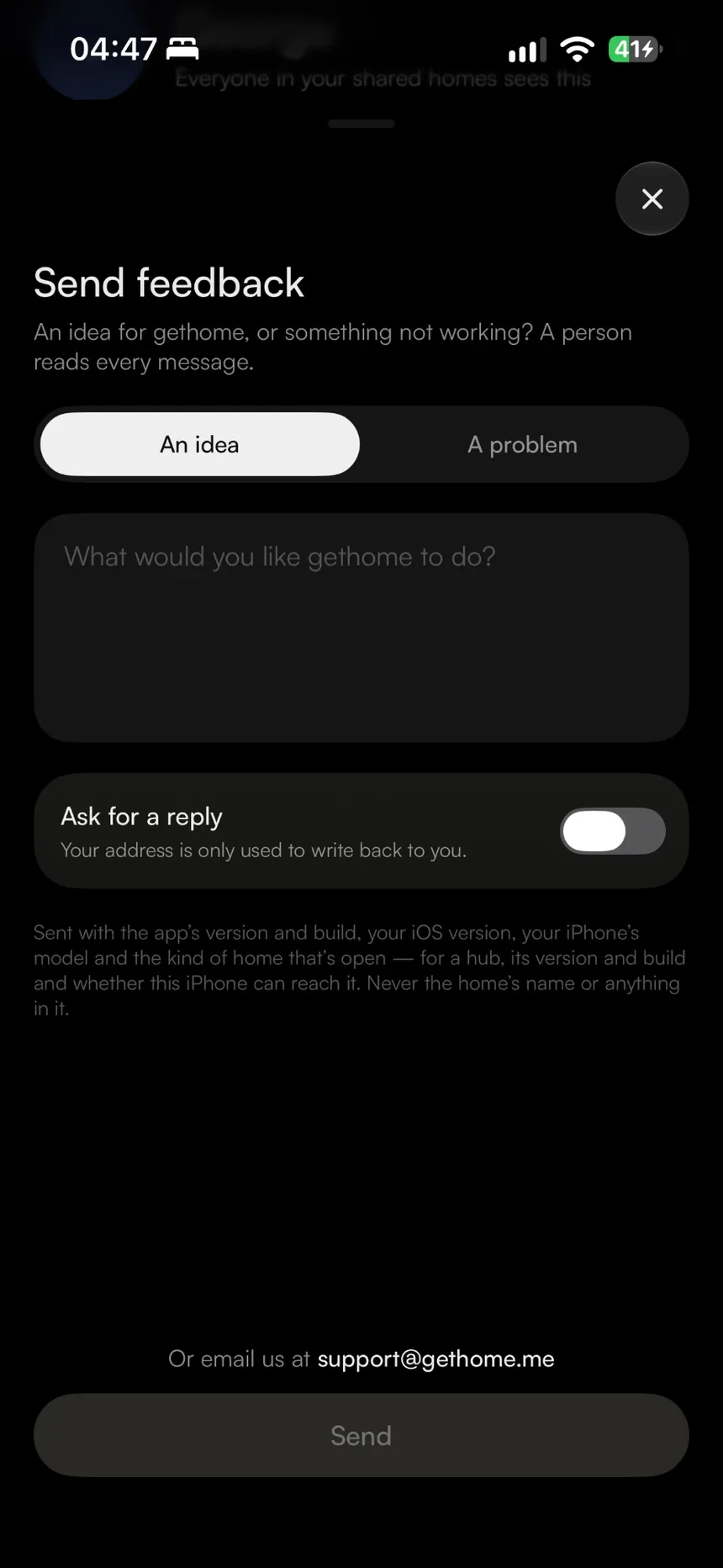
The app is free on the App Store. The version that went out brings a way to write to us from the app, and an About page.
Profile and Send feedback
Send feedback Profile → Send feedback sends an idea or a problem straight to us, with the app’s version — and, on a hub home, the hub’s — attached. Turn on “Ask for a reply” to leave an address; otherwise none is sent.
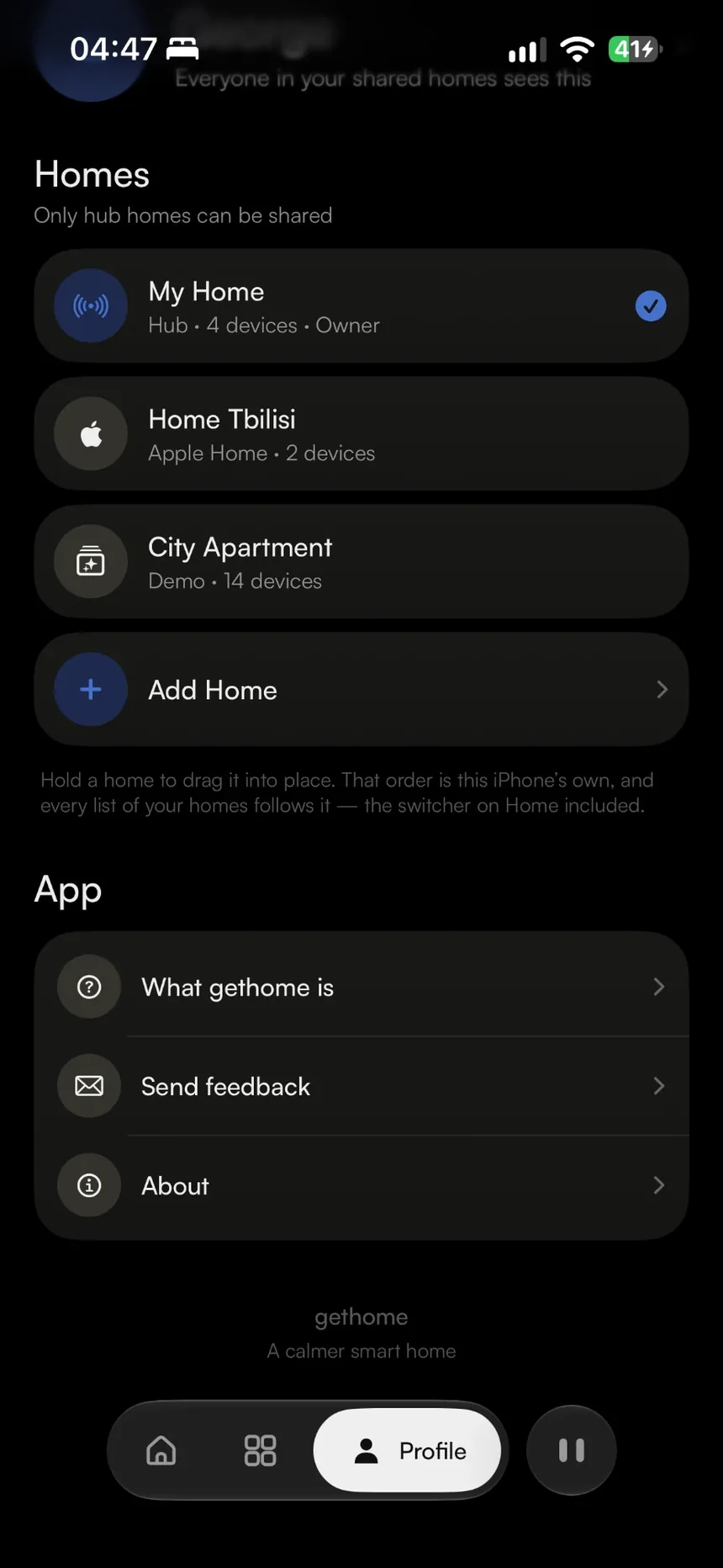
An About page Profile → About holds the Privacy Policy, the Terms of Use and what ships inside the app, and its version opens this changelog on the app’s own releases.
Studio tells you when there’s a new version
— gethome Studio for Mac 1.1.0
Studio is now a download from gethome.me. Once a day it checks for a new version, shows you what’s new, and installs it when you say so.
Check for Updates… In the gethome studio menu, for when you’d rather not wait for the daily check.
Up to you in Settings Switch the daily check off, or let new versions install by themselves when you quit Studio.
A clear ask for your network On macOS 15 and later, Studio explains why it needs your local network before macOS asks.
Runs on macOS 14 or later, on Apple silicon and Intel Macs.
Sonnet 5.5 in place of Sonnet 5
— gethome Hub 0.1.2
The assistant and the automations agent offer Claude Sonnet 5.5 where Sonnet 5 was, at the same price, and a home that chose Sonnet 5 runs Sonnet 5.5 once its hub updates.
Studio, redrawn around your hubs
— gethome Studio for Mac 1.0.4
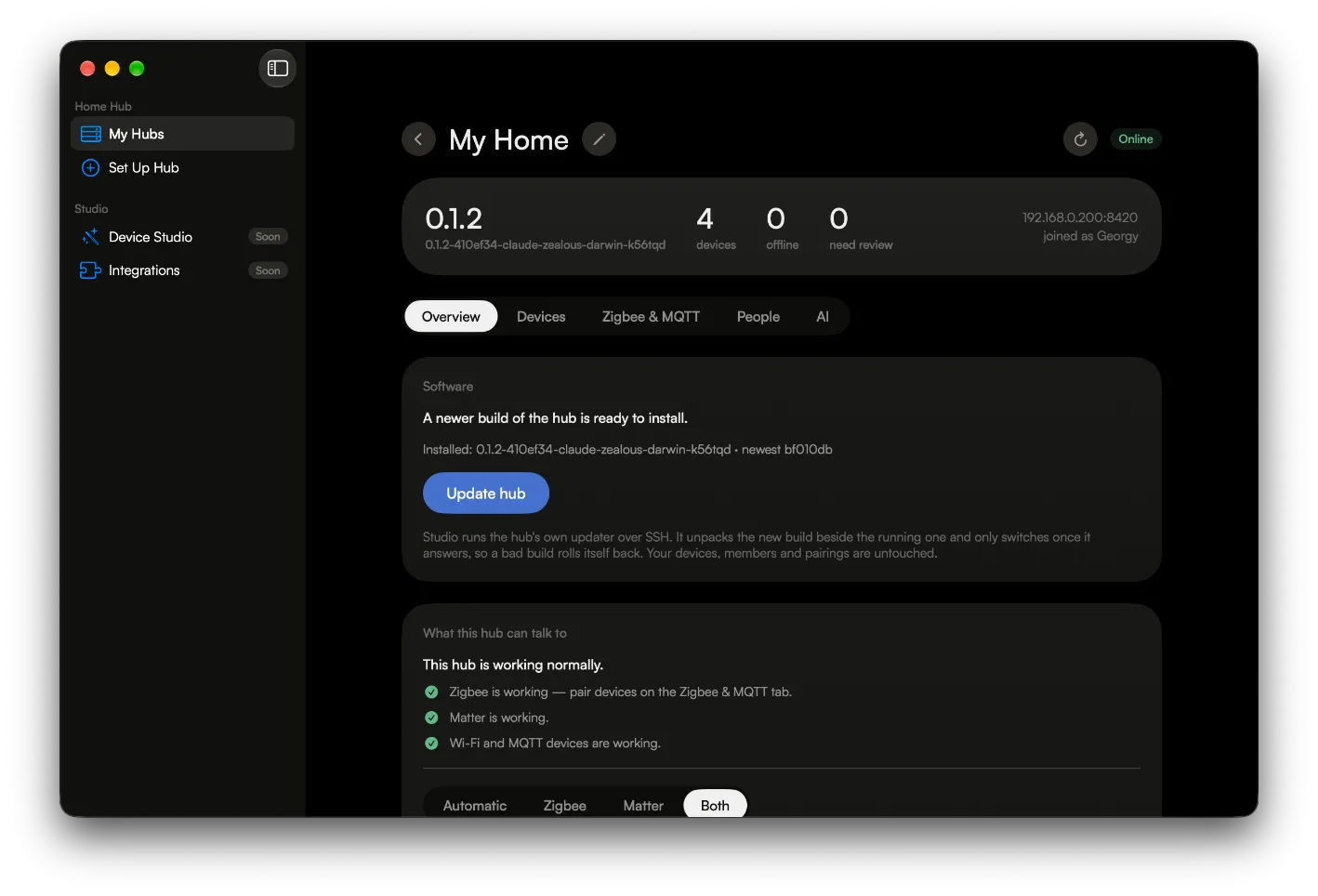
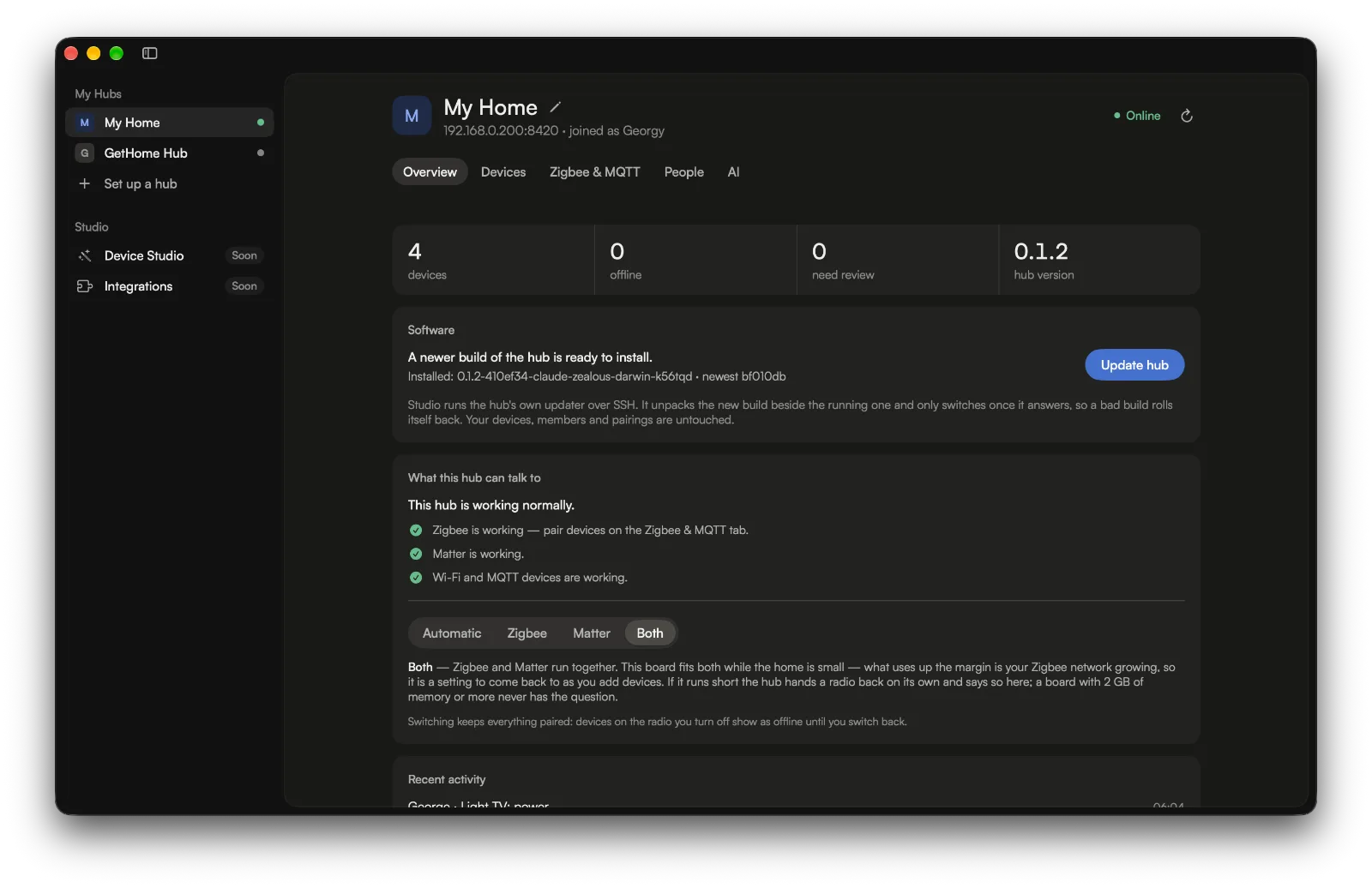
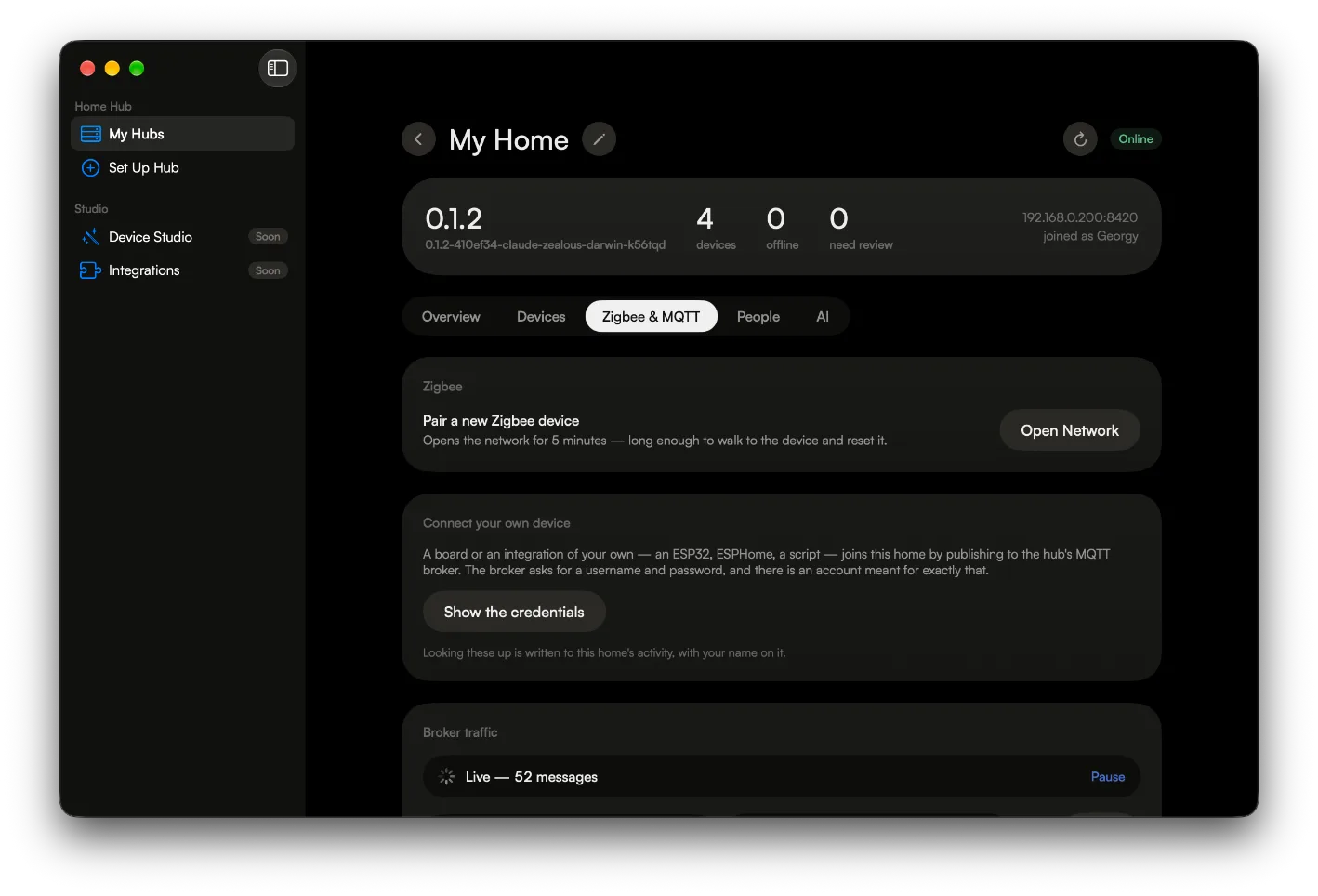
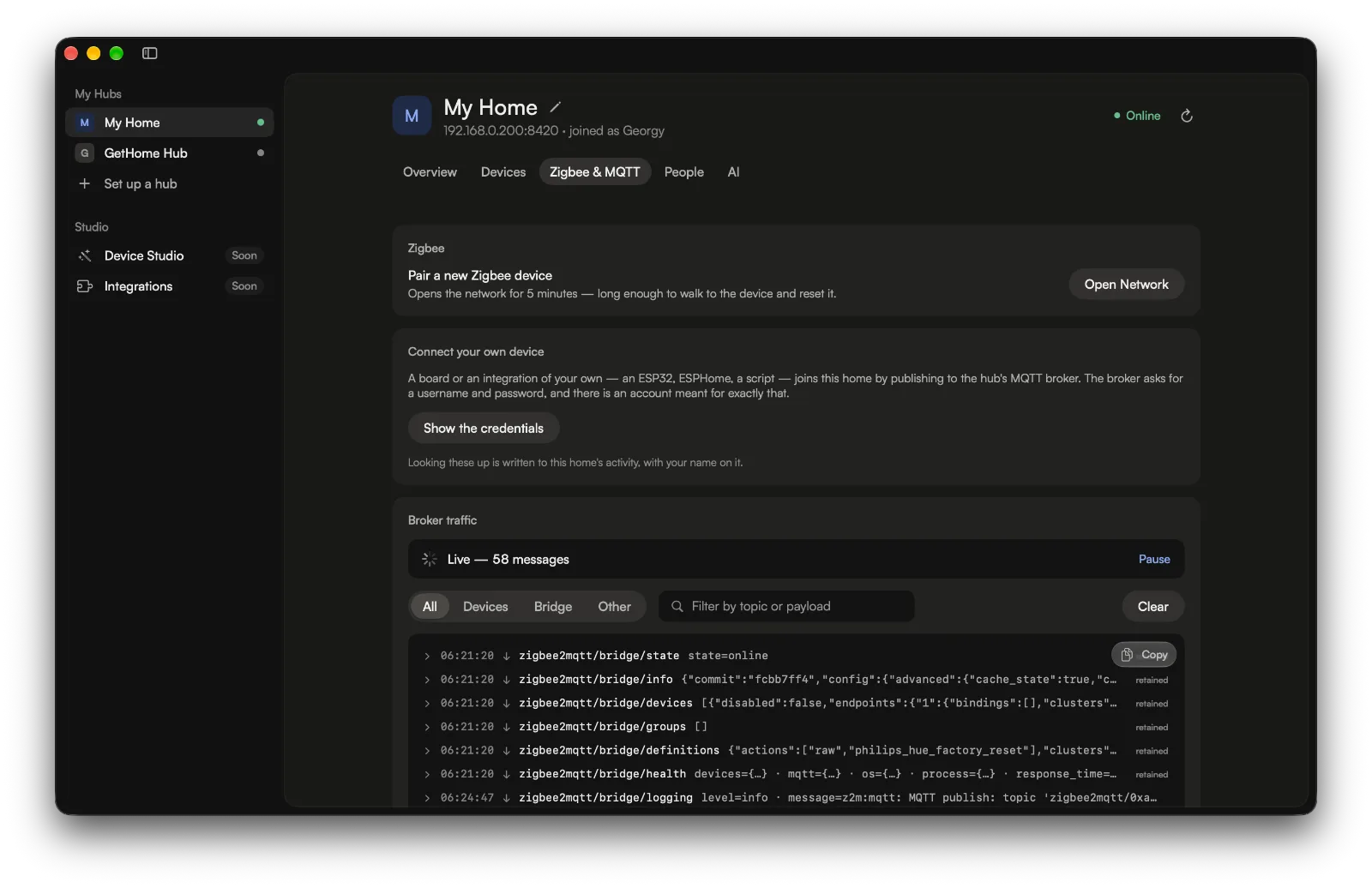
Your hubs are the sidebar now, each with a dot that says whether it answers, and every page sits in one panel beside them. The sidebar hides when you want the room.
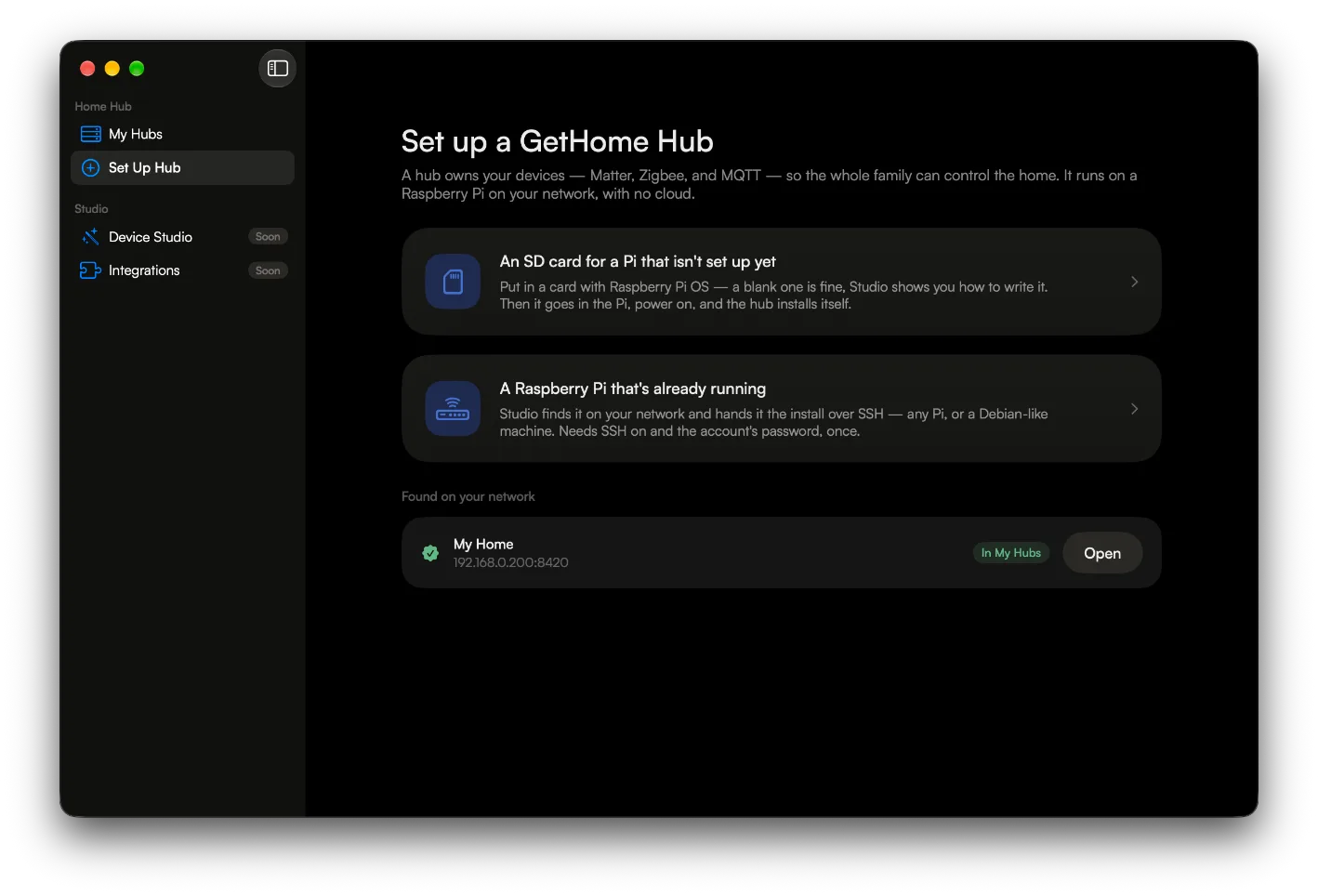
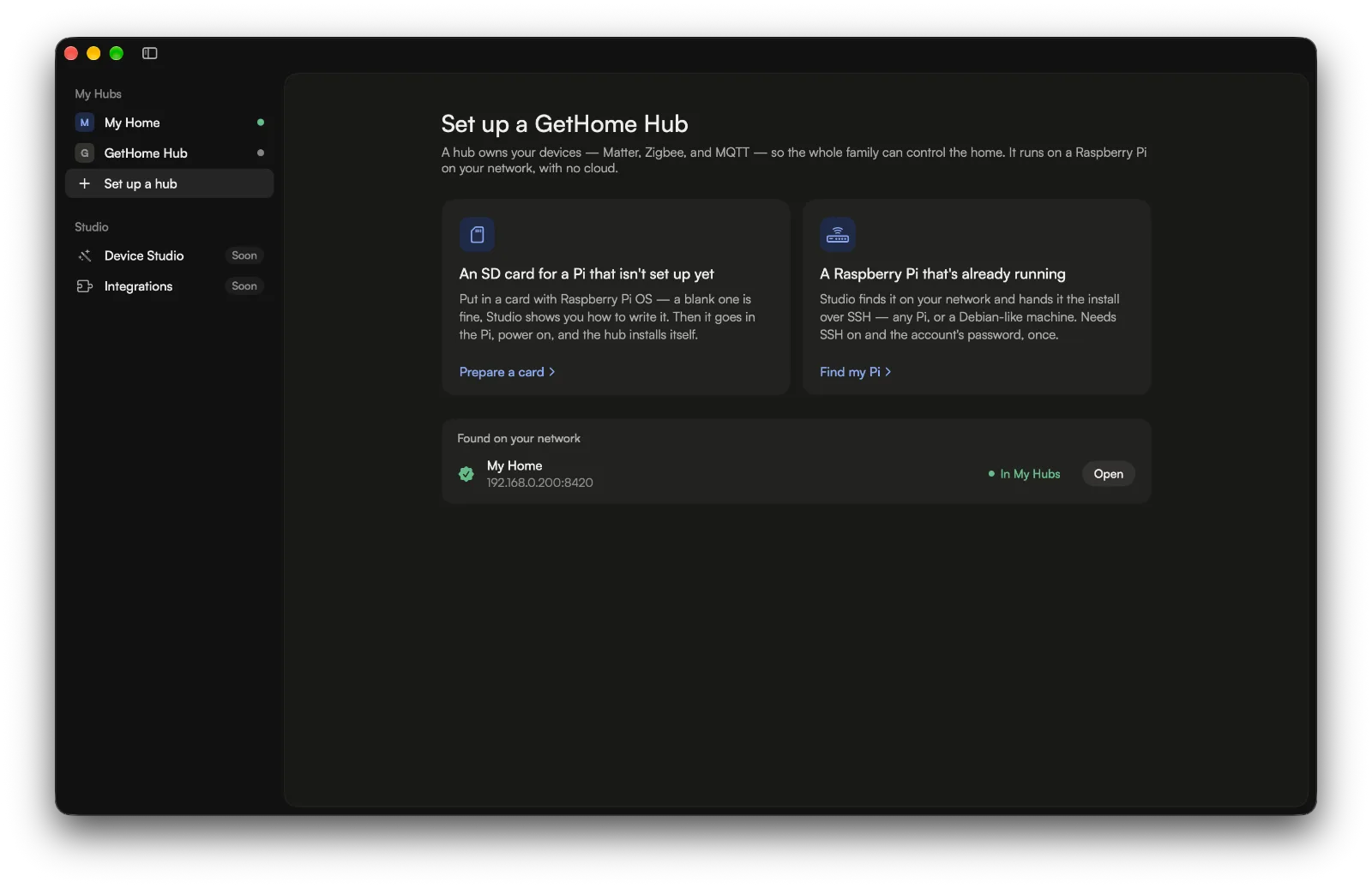
Overview — before and afterZigbee & MQTT — before and afterSet up a hub — before and after
Your hubs are the sidebar There is no My Hubs page to go back to: every hub you’ve saved is a row, green while it answers and grey when it doesn’t, and the rows drag into the order you want. Studio opens on the first of them, and a hub on your network that nobody has claimed yet is offered at the foot of the list.
A sidebar that gets out of the way Hide it with the button beside the traffic lights, View ▸ Hide Sidebar or ⌃⌘S. The page keeps its height while it goes, and Studio remembers how you left it.
A hub’s page starts with the hub Its name, its address, who you joined as and whether it answers sit in one header over the five tabs, and Overview opens on a row of figures instead of a status card — so the page gets back the room the old header took.
Two ways to set up, side by side An SD card and a Pi that’s already running are two equal cards, the card first because it asks the least. Once the hub is claimed, the last screen opens it — Return is enough.
A new look rather than new abilities: every tab of a hub’s page does what it did in 1.0.3, and the hub needs no update for it.
Every AI job on the model you pick
— gethome for iPhone 1.0.3 · gethome Hub 0.1.2 · gethome Studio for Mac 1.0.3
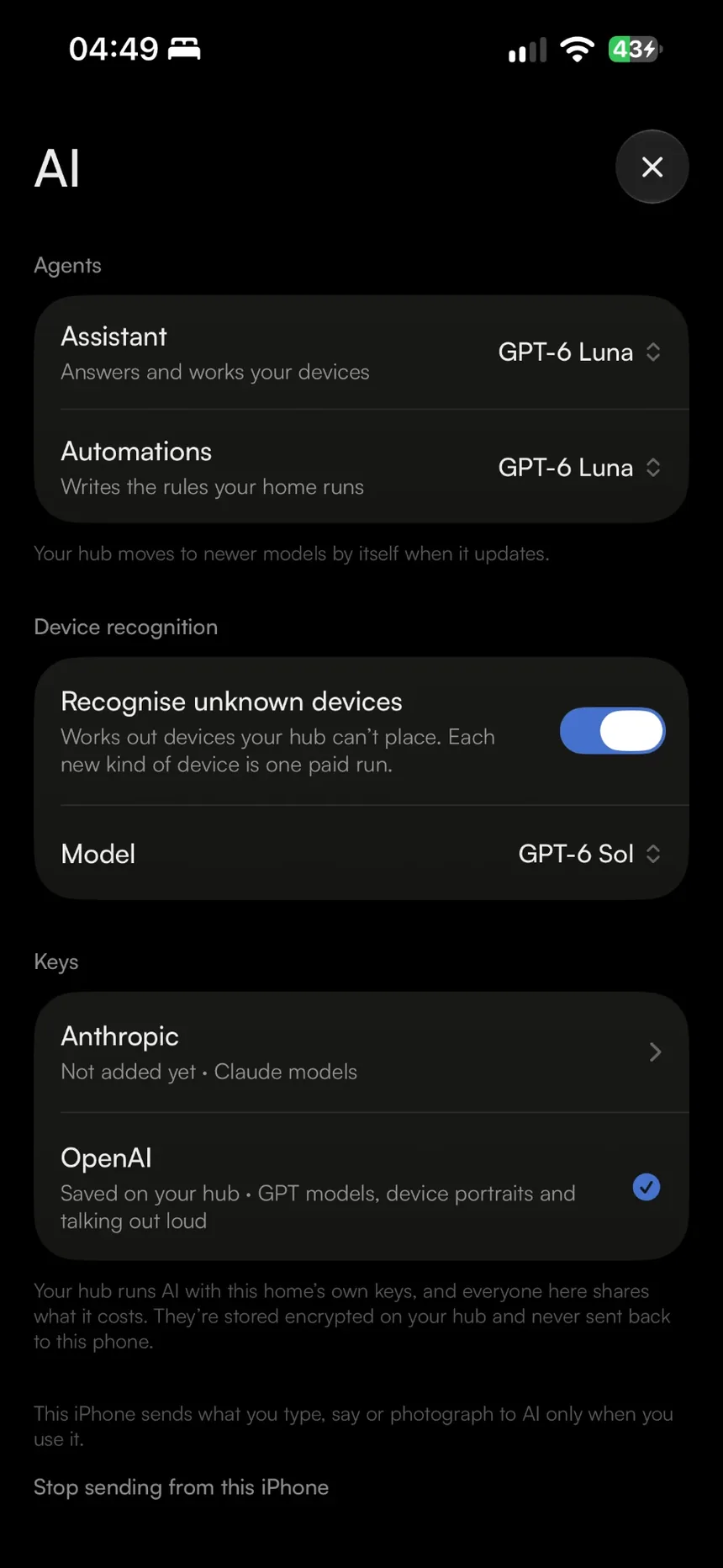
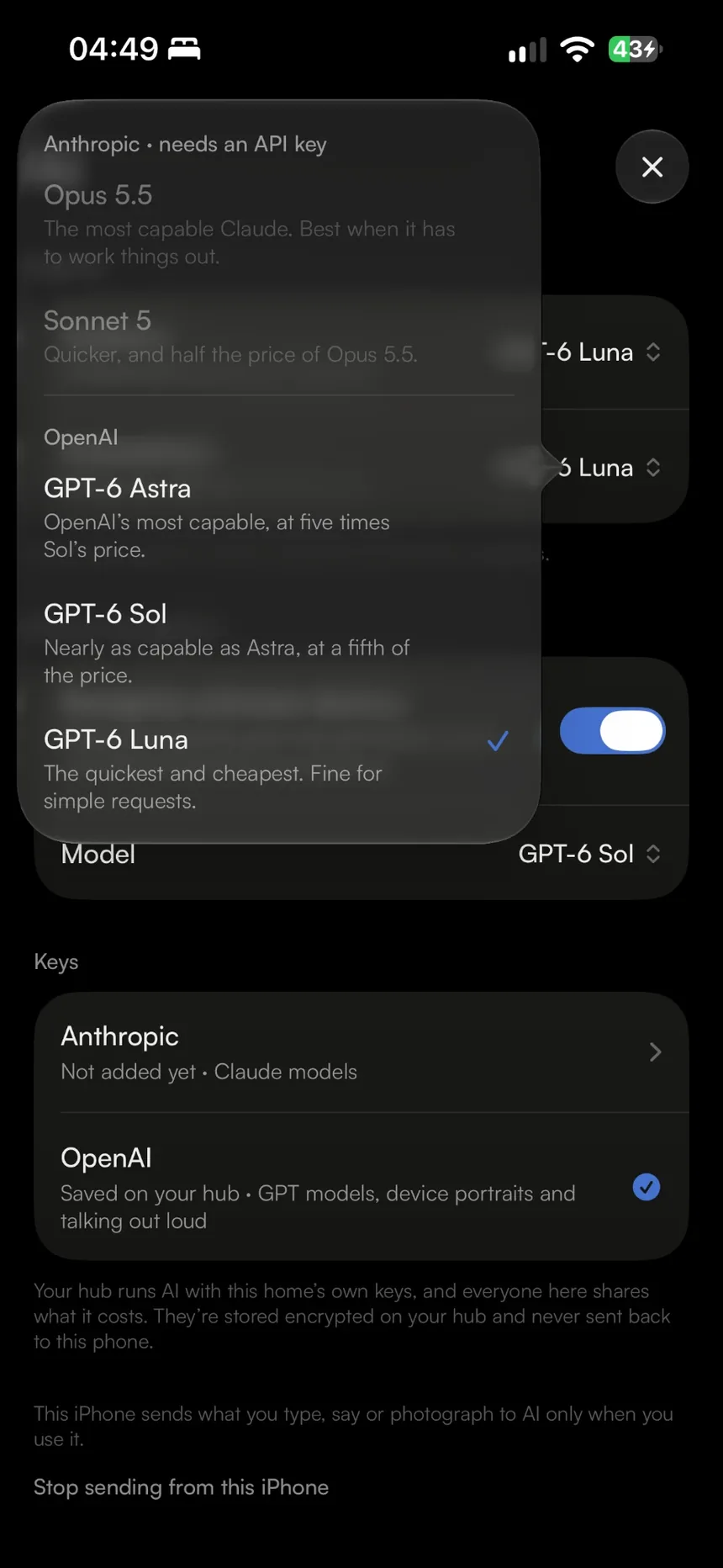
Device recognition, the assistant and the automations agent each name the model they run on, and each opens one menu with Claude and GPT side by side. Either agent now runs on either vendor’s key — and your phone asks before anything of yours goes to an AI.
Home Settings → AI
One menu, both vendors In Home Settings → AI on the phone and on Studio’s AI tab. A vendor you have no key for is listed as needing one, and the lists come from the hub — which moves a home onto a retired model’s successor when it updates, with no app release in between.
Either key writes rules The automations agent runs on OpenAI now as well as Anthropic, so one key of either kind is enough to talk to the house and to have rules written. OpenAI alone still draws device portraits and carries the voice.
A switch for the part that runs by itself Device recognition — the one job that spends money without being asked — has a switch of its own, so it can stop without a key being deleted. The assistant and the automations agent carry on.
Asked, not assumed The first time anything of yours would go to an AI — a message, the microphone, a portrait, a key being saved — the phone says what leaves, where it goes and that we get nothing, with two plain answers. A no is never asked again by itself, and a yes is taken back with one line on the AI page.
What the AI did, all of it Studio’s run log lists every kind of run — recognising a device, writing a rule, answering something typed or spoken, drawing a portrait, and the meter on a voice call — each with what it cost, how long it took, the model and how it was asked.
Consent is per phone: the keys are the home’s, but what you type, say and photograph is yours, so everybody in the house is asked for themselves.
Matter accessories, straight out of the box
— gethome Hub 0.1.2 · gethome for iPhone 1.0.3
The hub now pairs a factory-new Matter accessory over its own Bluetooth and hands it your Wi-Fi. Before, it could only take one that was already on a network.
Can the hub hear it? Before a three-minute wait, the app asks the hub what it can hear and says which problem you have — out of range, or not in pairing mode. Bluetooth only has to reach while pairing, so add it beside the hub and move it wherever you like afterwards.
A pairing that says where it is It tells you which half it’s in — hold the button, or leave it completely alone — can be cancelled, and always ends. The viewfinder has a torch, zoom and tap-to-focus for codes a few millimetres square, and a mistyped code is caught as you type it.
A network it can actually join Most accessories only have 2.4 GHz, so the hub never hands one a 5 GHz-only network — the app asks which to use instead — and it tells the accessory which country it’s in, so a router on channel 12 or 13 is one it can see.
Found again, and Thread too An accessory switched off for days is reached again within minutes of coming back, not whenever the router lets the right broadcast through. Thread accessories behind a border router you already own are reachable as well.
Bluetooth pairing is for Wi-Fi accessories: a factory-new Thread accessory needs a Thread border router, and the hub isn’t one — a Thread device already on yours pairs over the network as before. A WPA3-only network can’t be handed over, and the hub can’t yet share an accessory with another ecosystem.
A hub that answers when it’s up
— gethome Hub 0.1.2 · gethome for iPhone 1.0.3 · gethome Studio for Mac 1.0.3
Some routers sit on the broadcasts a phone uses to find a device, so a hub that was running perfectly could look dead for minutes. It now keeps itself known to every phone and computer that talks to it, and the apps can tell a slow hub from a gone one.
Known without being asked Wi-Fi power saving is off, and the hub reminds each phone and computer that talks to it where it is — directly, rather than by broadcast — so a phone coming home knows it again within a couple of minutes.
Slow isn’t gone The apps ask a slow hub twice, on a fresh connection, before calling it out of reach, and a hub that is switching radios or updating says so instead of reading as a failure. The hub keeps its own memory out of swap, too, so waking it isn’t a wait.
Closed to web pages The hub refuses any request addressed to it by a public domain name — the trick a web page would need to read it through your browser — and advertises only the address it actually answers on. Studio no longer writes its token where the system log can see it.
Checked before it runs Installing or updating checks the hub and the Node.js under it against published SHA-256 digests. A mismatch stops the install with the running hub untouched.
The hub can narrow a router’s faults, not fix them: a guest network or client isolation still keeps the phone and the hub apart.
A first launch that says what this is
— gethome for iPhone 1.0.3
Open the app with no homes and there are five pages to swipe through — your home on cards, one hub carrying both radios, a device the hub works out for itself, talking to the house, a rule written from a sentence — with “Add a home” and a demo under every one.
Nothing in the way No Next, no Skip, no counter: tap on the first frame and you never see the rest. Each page floats real pieces of the app over its picture, and Profile opens the deck again whenever you want it.
Asked properly Before iOS asks about the local network, a page says why a hub needs it. Say no anyway and you get the way into Settings rather than a spinner that never stops, and the search carries on by itself once access is back.
Can’t find your hub? A page of what to check when no hub turns up — and the app keeps looking, asking twice before it gives up.
Ask the house — typed, or out loud
— gethome for iPhone 1.0.3 · gethome Hub 0.1.2
The assistant is real now. What you type or say reaches an agent on your hub that answers about the home, works your devices, presses your scenes — and hands the jobs that belong to another agent over to it, in the same conversation.
It works the home Ask what’s on, what’s open or how warm the bedroom is, and it reads the house to answer. Tell it to switch something off or run a scene and it does — and the home’s history names whoever asked, not “the assistant”.
It hands the job on Ask for a rule and it writes a brief for the automations agent rather than learning rules itself. That agent’s steps, its questions — answered right where you are — and the rule it saves switched off all appear in the same conversation, and a follow-up goes back to the agent that did the work.
Just talk to it Tap the orb or the microphone and speak. It listens and talks at once, so you can cut in; a soft rising tone says it’s your turn, and the same notes falling say it has stopped. Nothing listens until you tap, and the line closes itself after a minute of quiet.
One conversation What you say is written into the same conversation as what you type, so the page fills in while you talk and you can carry it on by typing. Past conversations are a tap away for a fortnight, each with what it cost.
The key stays on the hub Your voice goes from the phone straight to OpenAI’s live model, over a call your hub sets up with the home’s key — the key itself never reaches the phone, and the answers come from the same agent your typing reaches.
Hub homes only — the agent lives on the hub. Typed answers run on the home’s Anthropic or OpenAI key; the voice is OpenAI’s live model, so it needs an OpenAI key and is billed for the time the line is open, silence included. It can’t send you a notification, and like the rest of gethome it only works on your own network.
Both radios, on a small board too
— gethome Hub 0.1.2 · gethome for iPhone 1.0.3 · gethome Studio for Mac 1.0.3
A board with 1 GB or less used to pick Matter or Zigbee. Now “Run both radios” is a switch on every board, and the hub watches its own memory — warning first, and handing a radio back by itself only if the board starts running short.
It warns, then acts With both on, the hub reads its memory every 30 seconds and acts on being throttled, long before anything is killed. You get about a minute and a half to choose for yourself; if it does hand a radio back, the home’s history and both apps say so.
Parked, not cancelled Your choice survives a stand-down: the hub tries both radios again by itself after the Pi restarts or within a week — twice — and a button in the app tries it now.
Memory, not model Every app now says what decides it: 2 GB or more runs both, and a 1 GB Pi 4 is set up for one radio at a time just like a Zero 2 W. A 1 GB board gets limits sized for its own memory, and a card moved into a bigger Pi is measured again.
Offline on purpose Unplug the heater for the summer and say so on its page: the home stops saying it needs attention, on every phone, until the heater answers again. A radio resting its turn, or a device the hub is still finding, no longer counts as offline either.
Measured on a Zero 2 W: one Matter plug and three Zigbee devices ran both radios for seven hours without being throttled once. Nobody can tell you where a small board stops fitting — if you’re planning a large Zigbee network beside Matter, get 2 GB or more.
Come back as yourself, on another device
— gethome for iPhone 1.0.3 · gethome Hub 0.1.2 · gethome Studio for Mac 1.0.3
A second phone, a Mac, or the same phone after the app was reinstalled used to join the home as a stranger with your name. Now a sign-in code brings you back as yourself — with your favourites, your conversations and your line in the home’s history.
A code that names somebody On your own row in People & access it’s “Add another device”, and it needs no permission; for somebody else it’s “Sign in again…”, for whoever may invite. Like an invite it lasts fifteen minutes and works once — but it brings a person back rather than adding one. In the app and in Studio.
Your name, in one place Say what you’re called once, on Profile, and every home you’re in gets it; the dashboard greets you by it, and each home in your list says which role you hold there. A name you typed when you joined a hub arrives by itself.
Straight to your home The app opens on your home from its first frame, instead of on a “Getting things ready…” screen while it remembered you had one.
The apps ask the hub before offering a code: a hub older than 0.1.2 would quietly add a second person instead, so it isn’t offered one.
A home that runs itself, written by describing it
— gethome for iPhone 1.0.2 · gethome Hub 0.1.1
Say what you want in a sentence and an agent on your hub builds the rule out of what your home actually has. Every rule is saved switched off until you turn it on, and every firing shows its working — including the commands the hub declined to send.
Describe it, don’t build it Start from a preset — “I’m leaving”, “Night”, a light that follows movement — or just say it: “turn the hall light on when someone walks past after dark.” The agent asks a question or two with answers you tap rather than type, and shows you the rule before anything runs.
A rule you can read Rules arrive drawn as a flow — what starts it, what has to be true, what happens — rather than as a paragraph to parse. It rests on one sentence and folds open into the steps.
Saved switched off Nothing your house does starts happening because a model decided it should. A new rule lands inert; the moment between “here is what I wrote for you” and “your home is now doing it” is yours.
Why the light came on A rule’s page keeps its firings, grouped by day — including the commands the hub refused. A relay is never switched twice a second, and a rule that runs away switches itself off and says so.
Scenes are automations On a hub home the scenes on your dashboard are the home’s own rules — the ones somebody can press. One vocabulary, one place to edit them, and pressing one is the floor: every member can work the home.
Rules where they belong A rule about one room appears on that room’s page, worked out from the devices it touches. The dashboard shows three with the rest one tap away.
They run on the hub Rules keep working while your phone is away, and they keep running whether or not AI is switched on — “stop spending my money on this” should never put the lights out on a schedule.
Writing a rule needs an Anthropic API key on the hub; running one needs no key at all. There are no notifications yet — a rule can write a line into the home’s history and nothing more, and the agent says so rather than inventing an action.
The hub, in full
— gethome Hub 0.1.0
A local hub that brings Matter, Zigbee and MQTT devices behind one typed schema, on a Raspberry Pi you own — no cloud account, nothing leaving your network. This is everything it did before automations.
One schema for everything Twenty-seven capabilities across sixteen device kinds, with exact unit conventions shared with the app. Buttons and remotes arrive as structured events, multi-channel relays as separate endpoints, IR blasters as learn-and-replay.
Nothing unsupported by default Three layers: typed capabilities first, then a generic control for every leftover parameter, then AI for the genuine gaps. The first two need no key and no network — a device is never simply unsupported.
Unknown devices, recognised Plug in a no-name sensor and a mapping agent reads its published schema, researches it starting from its own Zigbee2MQTT page, and submits a validated mapping — data, never code. Bring your own Anthropic or OpenAI key; every run records what it searched, what it read and what it cost, and the answers are a library you can carry to another hub.
Sharing, and roles A pairing code makes you the owner; short-lived invite codes add family. Owner, Member and Guest ship built in, a home can add roles of its own, and what each may do is a table either app edits.
Recorded readings Temperature, humidity, air quality and power in five-minute buckets for about a week, so an app can draw what the last few days actually looked like. A device that goes quiet leaves a real hole rather than a flat line pretending the room was steady.
Portraits are the house’s The AI picture of each device is drawn on the hub with the home’s own key and kept there, so everybody in the home sees the same kettle instead of one phone holding the only copy.
It updates itself A phone can ask the hub to update. The installer unpacks the new build beside the running one and flips a symlink, so switching is atomic — and if the new build doesn’t answer its health check, it flips back and says so.
One radio at a time, said out loud 512 MB fits Matter or Zigbee2MQTT, not both. Plug a coordinator in and the board runs Zigbee; leave it out and it runs Matter. Switchable from the app at any time, and nothing loses its pairing either way.
64-bit only. Tested on the Raspberry Pi 5, Pi 4 and Zero 2 W; Zigbee needs a USB coordinator. LAN-only by design in v1 — remote access through an authenticated relay is planned, and the hub is never port-forwarded.
Set up a hub without a terminal
— gethome Studio for Mac 1.0.2
The Mac app that turns “install a smart-home hub” into a guided few minutes: write an SD card, or find a Pi already on your network, and watch the install happen step by step.
Two paths, both real An SD card that already has Raspberry Pi OS on it, provisioned so the Pi installs the hub by itself on first power-up — or a Pi already running, installed over SSH. One four-step rail and the same checklist either way, and leaving halfway is safe: Studio offers to carry on where you left off.
It watches, it doesn’t guess Studio reads the Pi’s own install log as it grows and names the failure — a Pi that never joined the Wi-Fi, a card carrying the 32-bit image, a coordinator whose firmware is too old to pair — instead of showing a spinner that means nothing.
You are never asked for a pairing code Studio holds a key on the machine it installed, so it has the hub claim itself and brings the owner token back. The typed code is the fallback, not the route.
The hub’s own page What it can talk to, which radios are live and why, the build it runs and the button that updates it, the members list, and the full permissions matrix — every row in the hub’s own wording, so a Studio one version behind still draws a complete table.
A live view of the broker Every Zigbee signal passes through the hub’s MQTT broker; Studio streams it over the hub’s authenticated socket, with the pairing timeline beside the button that opened the network.
The device schema library Download a mapping from one hub and upload it to another, or hand a refused one back to the agent to repair — a schema the hub can’t use comes back with the reasons rather than a dead end.
Device Studio (inventing your own devices) and Integrations are reserved and marked Soon. Writing a blank SD card end to end isn’t implemented — Raspberry Pi Imager does that, and Studio puts its steps on the screen. Requires macOS 14 or later.
Back to the iPhone XR
— gethome for iPhone 1.0.1
The deployment floor drops to iOS 18.6, so the app installs on every iPhone from the XR onward. iOS 26 stays the design target: each Liquid Glass surface keeps the new API as its primary path and takes a documented fallback below it, rather than being flattened to what both versions can draw.
The first gethome
— gethome for iPhone 1.0.0
An iPhone app that holds the whole house — three kinds of home, every device grouped by room, and a dashboard that answers questions instead of listing switches. This is everything the app did before automations.
Three kinds of home Mirror a whole Apple Home over HomeKit and control Matter and HomeKit accessories from one place; attach devices to a gethome Hub and share that home with the family; or build a demo home from one of five archetypes with no hardware, no account and no hub at all.
A dashboard that answers questions A smoked-glass pulse panel with a calm-or-attention headline, one big hero reading, and tappable metrics — what’s on, what’s offline, whether the home is secure, how warm it is inside — each of which opens the Devices pane with that lens already set.
Controls that fit the device Colour without switching the lamp on, warmth ramps, cover positions, a 270° thermostat dial with half-degree detents. Twenty-seven typed capabilities across sixteen device kinds, not a wall of identical toggles.
Rooms as places, arranged by you Every room zooms open into its own page. Hold a room or a device card and drag it where you want it — that order lives on your phone alone, so everyone in the house can arrange the same home their own way, while the names and rooms themselves are shared.
Widgets and a Control Center toggle A device pill in Control Center, on the Lock Screen or behind the Action button, a one-device Home Screen tile, and a room-or-favorites grid. A tap reaches the hub over your Wi-Fi from the widget’s own process, so there’s no app launch in the way. Hub homes only, on purpose.
What a reading was A device that measures something carries its history — the last hour, six hours, day or week as a line with the low-to-high range of each moment shaded behind it. Drag across it and the value follows your finger.
Roles for a shared home Owner, Member and Guest, plus any role the home invents, edited from a table in Home Settings. What your role can’t do is never a button that fails — one quiet line says the role is why.
AI device portraits, experimental A clean, palette-matched render of the device on a transparent background, floating on its page and tilting to your phone’s motion. Make one from a photo in the portrait studio; on a hub home the hub draws it, so it is the house’s picture rather than one phone’s.
Adding devices Matter by scanning the accessory’s setup code, Zigbee by opening the hub’s network for a few minutes. The radio switch, the hub’s address and build, and the button that updates it all live one floor down from Home Settings.
The assistant orb ships as a surface rather than an intelligence: it listens, it answers your voice with light, and it says honestly that understanding is still being wired in. Requires iOS 18.6; iOS 26 for the full design.